
To change how quickly a new Voice AI narration speaks, adjust its speaking-speed setting inside the Canva app before generating audio. Changing the length of a Canva scene is a different task: it changes how long the visual stays on screen, not necessarily how fast the existing narration speaks.
That distinction helps you fix the right problem. A rushed sentence needs a delivery or script revision. A readable sentence over a scene that ends too soon needs more visual time. Start by identifying which one you are hearing.
Identify the timing problem first
Play the narration without watching the video, then watch it with the visuals. If the speech is hard to understand in both cases, work on the script or generation speed. If it is clear alone but impossible to follow while reading a chart, simplify the chart or extend that scene.
- Speech is rushed: shorten the sentence or try a slower generation setting.
- Speech is clear but outlasts the scene: extend or reorganize the visual sequence.
- Scene feels empty after the narration: trim unnecessary visual time or add a relevant demonstration.
- One term is unclear: revise that pronunciation or phrase instead of changing the entire video's pace.
Change the speed before generating
Open Voice AI by imagination-soft in your Canva project. Paste a short representative passage and select the voice you plan to use. Find the speaking-speed control available for that voice and move it a small amount from its default.
Generate the passage and listen to the result. If the new pace works, use that setting for the rest of the related narration. Avoid assuming that the speed options shown for prerecorded samples on the Voice AI website are the same as a particular voice's generation controls inside Canva.
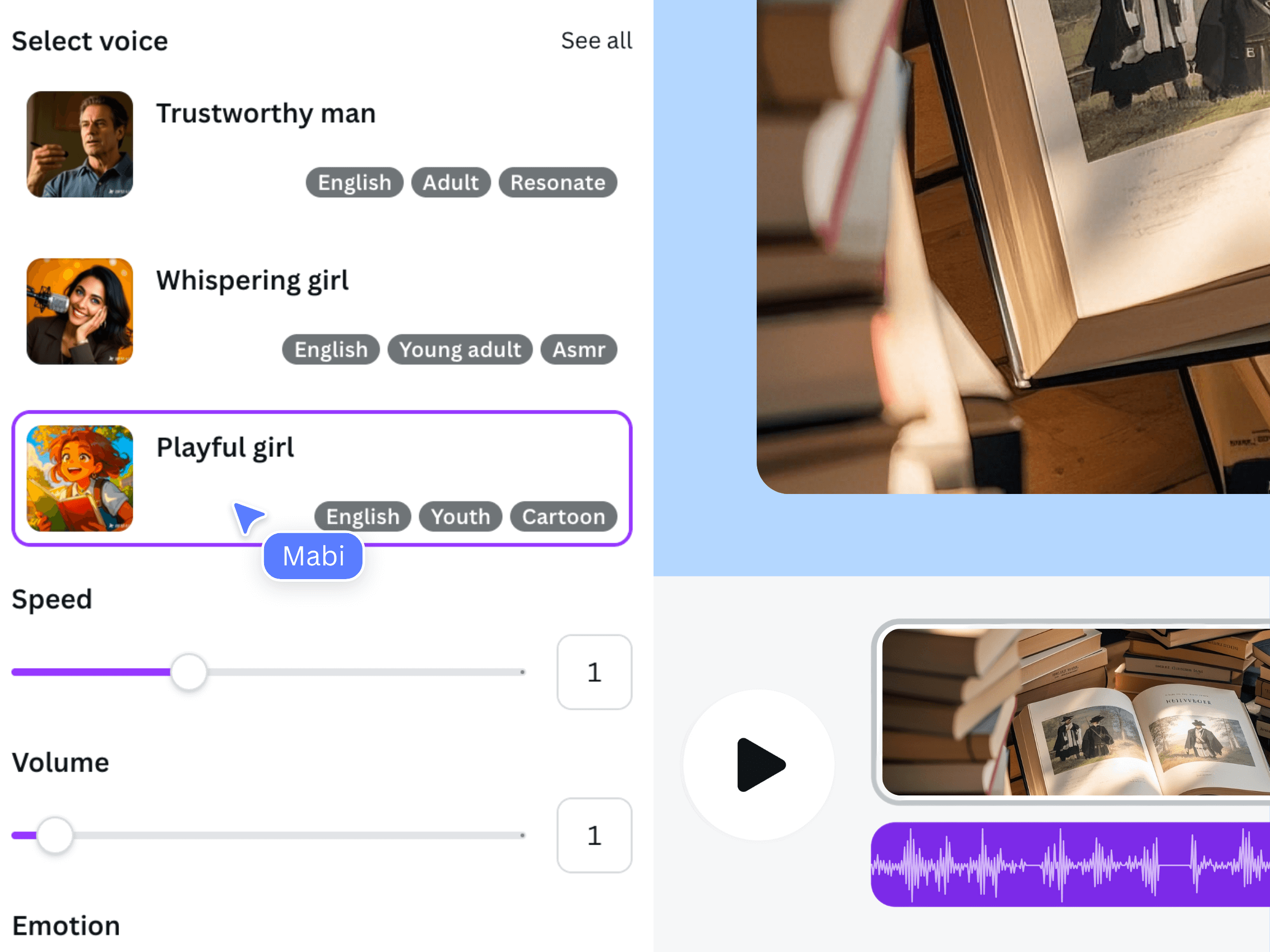
The official Voice AI illustration includes a speed control. It demonstrates the kind of delivery setting to look for; the current control layout and supported values can differ.
Compare the same sentence at different speeds
Use this original test script so your comparison includes an instruction, a pause between ideas, and a final action: “Choose the image you want to use. Check that the title is easy to read, then preview the whole design before you export it.”
Create a default version and one modestly slower version. If the purpose is a fast introduction, also test a modestly faster version. Keep the voice and words unchanged, and listen to the complete sentence rather than only its first few seconds.
Write down the actual clip duration and any words that became difficult to follow. A speed change is useful only when it improves the result for your viewer. No fixed setting can guarantee that every script will land at exactly the same length.
Fit narration to a target duration without rushing it
Suppose your finished narration takes 24 seconds but you planned a 20-second scene. That is a four-second gap between the plan and the actual recording. First remove repeated information, then decide whether the scene can stay longer. Treat the target as an editing constraint, not a reason to make the speech unintelligible.
As a planning estimate, 24 divided by 20 is 1.2, so the same words would need roughly 20 percent greater speaking rate to fit. This is not a recommended app setting or a guarantee: pauses and voice behavior affect the generated duration. Measure the next result instead of relying on the calculation alone.
For a single troublesome sentence, generate a separate revised clip. You can keep the rest of the narration at its original pace and give the difficult explanation the time it needs.
Replace the clip and recheck the timeline
After adding the new audio to Canva, remove or mute the superseded clip so two versions do not play together. Position the replacement at the intended scene and review the transition before and after it. A shorter narration can leave a gap; a longer one can overlap the next section.
Adjust scene durations around the audio you actually selected. Export an MP4 and listen through the changed passage. Keep the chosen script and settings in your project notes so a later replacement does not unexpectedly change the overall delivery.
Frequently asked questions
Does making a Canva page longer slow down the voice?
Extending a page or scene gives the visual more time. In this workflow, use Voice AI's generation settings to change speaking speed, then fit the scene to the resulting audio.
Can I change a narration I already generated?
You can return to the script, generate another version with different settings, and replace the clip. This guide does not assume that an existing audio file has an in-place speed control in every Canva editing mode.
What is the best speed for a tutorial?
Choose the pace that lets the viewer understand the instruction and inspect the result. Technical terms and unfamiliar steps may need more time than a short introduction. Test with the actual visuals.
Does the website's sample speed change my Canva voiceover?
No. The website's prerecorded sample player is for listening. Configure your new narration in the Voice AI Canva app and check the generated result there.