
There are two different ways to create a pause: change how a sentence is spoken, or leave time between separate narration clips on the Canva timeline. Use wording and punctuation for phrasing. Use clip placement when the viewer needs a deliberate interval to read, look, or complete an action.
A comma is not a stopwatch. The method below separates these decisions so you can test the audible result without assuming that punctuation or line breaks will create an exact number of seconds.
Identify what the pause needs to accomplish
First write down why speech should stop. A short boundary can separate two ideas. A longer interval may let the viewer inspect a diagram or complete an instruction. Silence between independent sections can also make a transition easier to understand. These jobs need different solutions.
- Phrasing: the listener needs to hear where one thought ends and another begins.
- Viewing time: the audience needs to inspect a label, result, or visual detail.
- Action time: the viewer is expected to perform a step before the next instruction.
For phrasing, begin inside the script. For viewing or action time, plan a gap in the design as well as the narration. Slowing the entire voiceover changes every phrase, including the parts that already work. It may not create the interval you need at one particular point.
Test punctuation for sentence-level phrasing
Generate a short representative sentence in Voice AI using your selected voice. Listen to its current phrasing, then change one feature: split a long sentence, replace a comma with a full stop where the meaning permits, or simplify a crowded clause. Regenerate and compare the full phrase while keeping other delivery settings steady.
In this original sample, “Choose a photo, check the crop, and save the page” can become “Choose a photo. Check the crop. Then save the page.” The second version makes the instructions more distinct, but the actual pauses depend on the generated delivery. Listen before deciding that it suits the visual sequence.
Do not fill a sentence with repeated punctuation, ellipses, or bracketed timing commands and assume the output will obey them. Those characters may affect phrasing, be ignored, or produce an unwanted reading. There is no documented exact-seconds punctuation method established by the product sources used here.
Use separate clips for an intentional interval
When a specific part of the video needs space, prepare the speech before and after that point as separate complete passages. Generate each passage and add the accepted clips to your design. Separating at a sentence boundary is usually easier to review than cutting through a word or a connected syllable.
On Canva’s video timeline, place the second clip after the first with an interval between them. Preview the area with its intended visuals and adjust the placement until the interval serves the task. Check the displayed timeline and actual playback rather than estimating the gap from punctuation in the script.
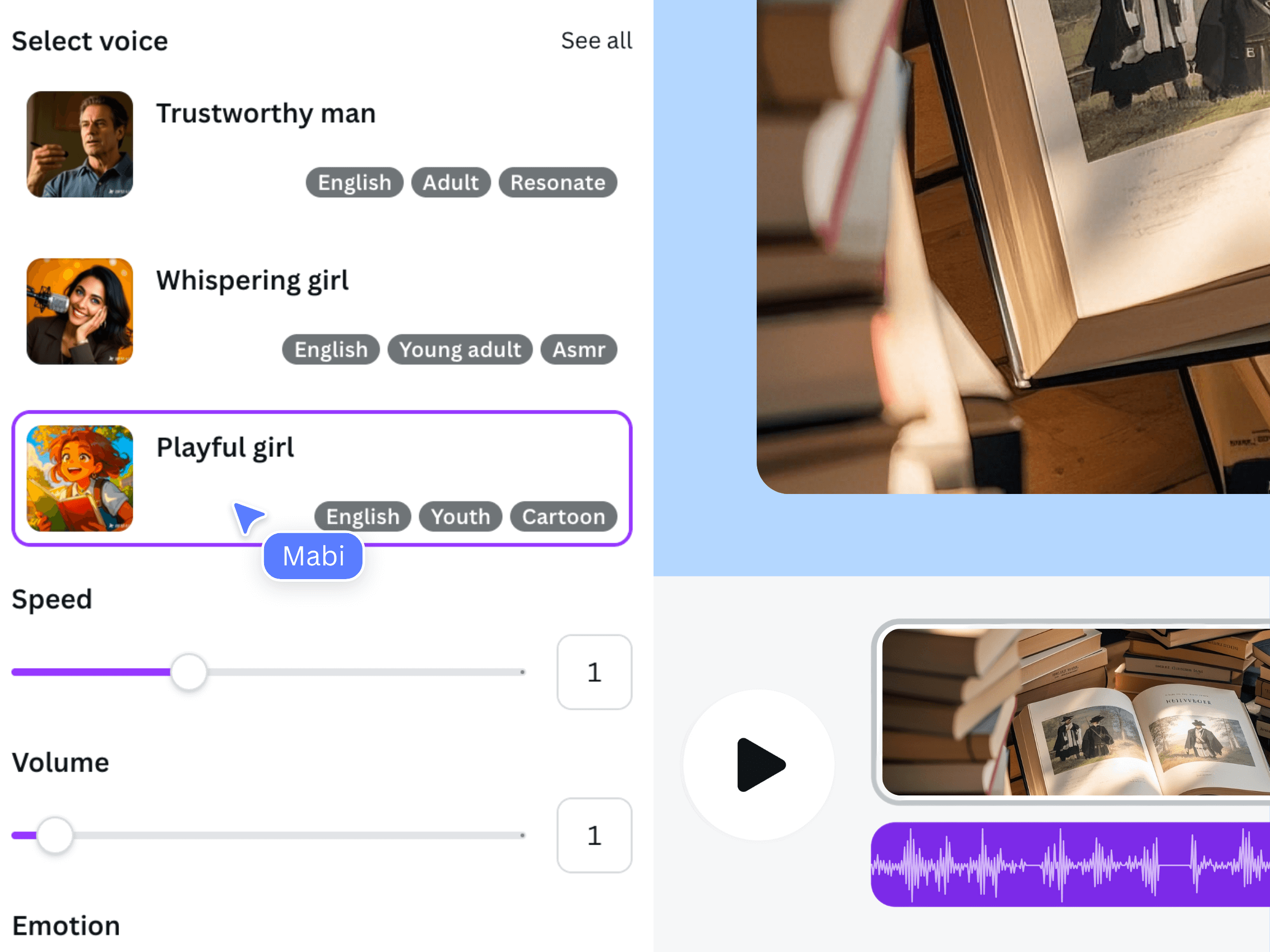
The image above is earlier official Voice AI promotional material. It illustrates the general text-to-voice workflow; it is not a screenshot of a dedicated pause control or the sample exercise. Canva’s timeline handles clip arrangement, while Voice AI supplies the narration passages.
Work through a pause for a visual task
Consider an original sample tutorial that asks a viewer to check a photograph before continuing. Clip A says, “Check that the whole subject is inside the crop.” The next scene holds the example on screen. Clip B says, “When you are ready, save the page.” The space between those complete instructions belongs to the visual task, not to a comma.
First arrange the two clips with a tentative interval and play the sequence from before Clip A. Can the viewer understand what to inspect? Does the example stay visible during the interval? Does Clip B begin while the viewer is still trying to locate the detail? Revise the scene and clip placement together.
For an audience that needs different amounts of time, a fixed interval cannot guarantee everyone finishes. Tell viewers they may pause the video, or separate the instruction into a clear chapter. Treat any chosen gap length as a decision for this particular example rather than a universal reading-time rule.
Check music, overlaps, and word boundaries
An interval with no narration may still contain music or sound from a video clip. Decide whether that background audio should continue. If you need complete silence, inspect the other audible tracks as well. If music remains, listen to whether the next spoken word is easy to hear when narration returns.
Preview across both boundaries at normal listening volume. Do not trim the first clip so tightly that the final consonant disappears or the last word feels cut off. Likewise, leave the opening of the second clip intact. A fade is a volume transition, not an insertion of silent time inside a spoken sentence.
The demonstration below is earlier official general workflow media, not a recording of the photo-check exercise. It shows the broader narration process; apply the pause decision to the clips and timing in your own design.
Preserve the pause when revising a passage
Record the reason for the interval beside the corresponding script sections. If Clip A is regenerated, its duration may change, so an unchanged start position for Clip B can create a shorter gap or an overlap. Recheck the area after every replacement instead of assuming the earlier spacing survived.
- Keep the instruction, its visual example, and the following line in the same review pass.
- Check that the end of the design leaves room for the final spoken word.
- Confirm captions remain readable through the intended pause.
- Play the exported video across the interval and both neighboring sentences.
The acceptance test is simple: the narration remains complete, the viewer has the intended opportunity to inspect or act, and the next line arrives at a sensible point. A visible gap on the timeline is useful evidence of your editing choice, but the delivered playback is the final check.
Frequently asked questions
Can a comma create an exact one-second pause?
Do not rely on it for exact timing. Punctuation can influence phrasing, but the output varies with the voice and sentence. For a deliberate interval between sections, use separate accepted clips and review their spacing on the video timeline.
Is changing voiceover speed the same as adding a pause?
No. Speed changes affect the delivery of a passage, while a pause addresses a particular boundary or task. Start with sentence structure for phrasing, or clip placement for a planned interval, then use the available delivery controls only when they help the overall narration.
Should I put a timing instruction in square brackets?
Only use an input format explicitly documented by the product. This guide does not establish a supported bracket command or SSML syntax for Voice AI. Keep production timing notes separate from spoken text so they are not accidentally read aloud.
Why does the gap disappear after I replace a clip?
The replacement may have a different duration, or its neighboring clips may now overlap. Inspect the end of the first passage and the start of the next, then preview them with the visuals. Keep the earlier version until the revised sequence is accepted.