
Split a long AI voiceover script at changes in meaning: a new task, topic or visual sequence. Generate and review those sections separately, then place their narration clips in your Canva video. A useful split lets you replace one section later without rebuilding the entire recording.
This guide focuses on chapter management rather than a claimed text limit. Voice AI is a text-to-voice app in Canva; available input limits can change. The chapter map, filenames and review log below are an original editorial workflow, not automatic features of the app.
Choose boundaries that survive later edits
Start with the approved full script in a document you control. Mark the places where the viewer finishes one job and begins another. A chapter should make sense when heard alone, while still leading naturally into the next part. Keep an instruction and its immediate explanation together.
Avoid cutting after an arbitrary number of characters or halfway through a sentence. That makes the next clip harder to judge and can produce an unnatural restart. If one chapter is still too large to manage, divide it at a smaller complete action. Review any current app input guidance separately instead of treating your editorial chapter size as a product limit.
- Start a chapter when the task or subject changes.
- End after a complete thought, including a necessary exception.
- Keep a closing phrase with the action it completes.
- Write a short opening cue that still works if the chapter is reviewed separately.
Build a chapter map before generating audio
Use a simple log with a chapter number, spoken opening, last sentence and matching visual section. This keeps the narration order clear even if you generate clips in a different sequence. Do not rely on a row's position in an uploads panel as the only record of where it belongs.
For an original example, imagine a community archive tour. Chapter 01 introduces the archive and ends with its opening hours. Chapter 02 shows how to search a record and ends after opening a result. Chapter 03 explains how to request a copy and closes with the next step. These are sample production notes, not a real organization's instructions.
- 01_intro_v01: opening overview; visual section A; review owner Sam.
- 02_search_v01: search example; visual section B; confirm the displayed labels.
- 03_request_v01: request process; visual section C; verify the final action.
These labels belong in your tracking document or filenames where supported; they do not require a special naming control in Voice AI. Give each chapter one person who can approve its wording. Resolve content changes before comparing voice delivery.
Generate a small reference clip, then the chapters
Open Voice AI inside the Canva design and begin with a representative passage. Select the voice and any available delivery controls you intend to keep. Listen for sentence endings, repeated terms and the level of energy. Save a note of those choices before generating the remaining approved sections.
Generate one chapter at a time and listen before adding the next. Reject a bad take while you still know which script version produced it. When two chapters share an important word or name, compare their pronunciation directly. A consistent voice selection helps, but it does not remove the need to review separate generations.
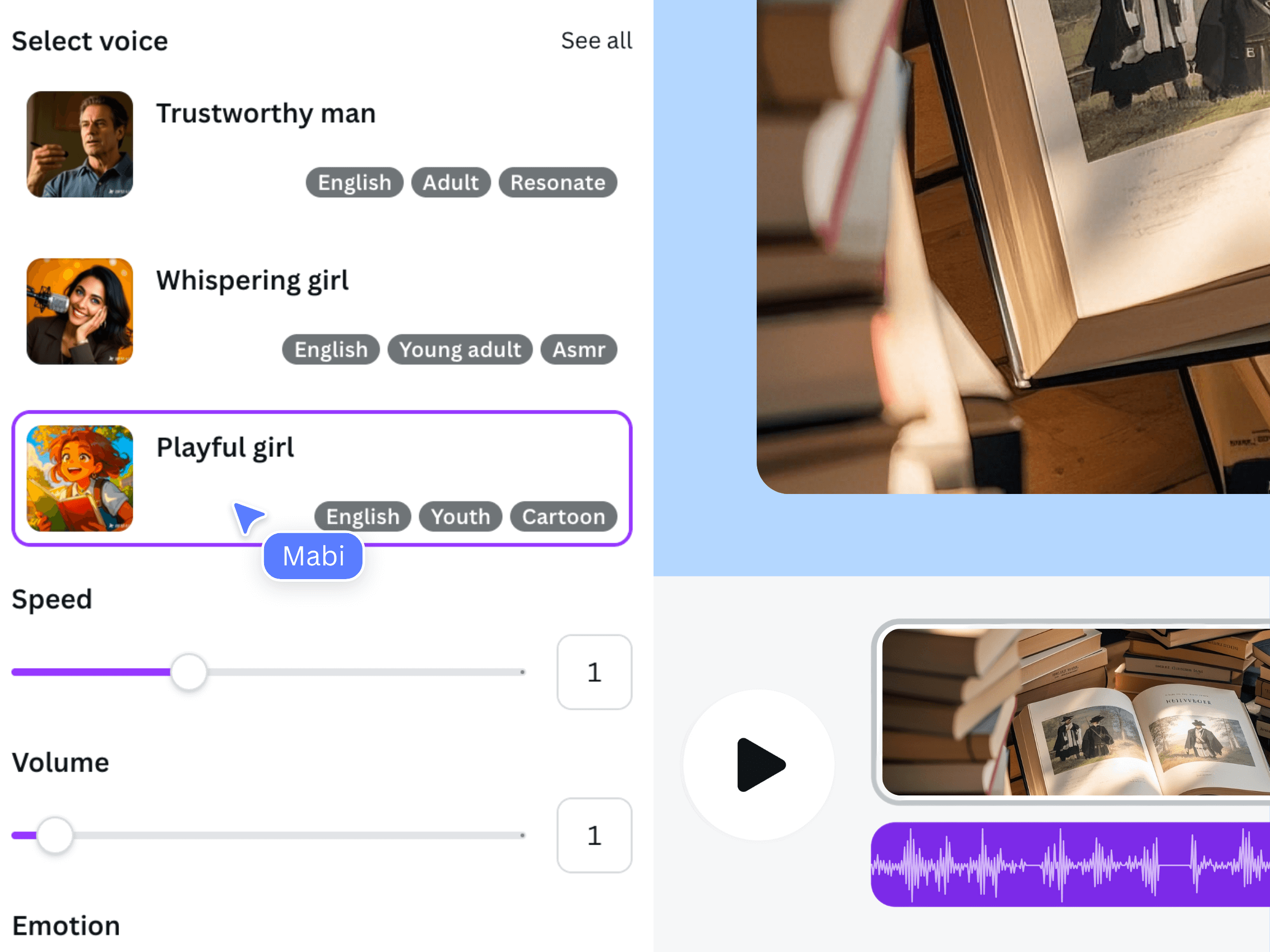
The image above is earlier official Voice AI promotional material. It illustrates the general product and voice-selection workflow, not a chapter organizer or a screenshot of the archive example.
Keep a useful asset and revision log
For each accepted clip, record the chapter label, script revision, generation choices and actual duration shown in your editing workflow. Mark a take as accepted only after listening from its first word to its last. If you retain several takes, make the chosen one obvious in the log.
A new wording revision should receive a new label such as 02_search_v02. Keep the old accepted take available until the revised chapter passes review. If you do not have an independent downloadable audio file, do not assume an MP3 export exists: retain the design copy and your script log using the options actually available to you.
Assemble chapters in the intended order
Place the accepted narration clips against their corresponding visual sections in the Canva timeline. Check the order against your chapter map rather than trusting how files were sorted. Canva supports separate audio tracks and timeline editing, but the exact arrangement tools may vary with editor mode.
Listen across every join. A clip can sound fine alone yet repeat an opening word, miss a linking phrase or leave an awkward gap beside its neighbor. Adjust clip position and visual timing as needed, while preserving complete words. Do not trim an essential syllable simply to make a chapter fit a shorter scene.
Then review the full narrative without stopping. The purpose is to check continuity: the listener should understand why the next topic follows. Make a note of any chapter that needs a wording change, and send only that section back to its owner.
Repair one chapter and run a final continuity check
When Chapter 02 changes, update its script revision, generate its replacement and compare its actual duration with the accepted take. Replace it in your working design and recheck the neighboring joins. A longer revision can shift later cues even when Chapters 01 and 03 have not changed.
- Confirm the chapter sequence and the accepted revision for each clip.
- Check the first and last words at every join.
- Review on-screen labels and captions affected by the revision.
- Listen to a fresh final export, including the closing sentence.
Archive the approved script map with the delivered version. That small record is what makes the next update manageable; it is more useful than regenerating the entire long script just because one instruction changed.
Frequently asked questions
How many words should each narration chapter contain?
Choose a complete, reviewable task rather than a universal word count. Consider the script's structure, visual sequence and the current input guidance in your app. There is no single chapter length that fits every project.
Will separately generated chapters sound identical?
Not necessarily. Keep the same intended voice and delivery choices, then compare the actual recordings. Pay particular attention to names, sentence endings and the energy at transitions.
Do I need to regenerate every chapter after one edit?
Usually you can produce a revised clip for the changed chapter and review it in the working design. Recheck its neighboring joins and later timing; do not assume the new duration matches the old one.
Does Voice AI automatically organize a long script into chapters?
This guide does not assume that capability. The chapter map and revision log are manual planning tools. Generate and manage the sections with the controls currently available in your app and design.