
To replace AI voiceover in Canva, produce a corrected narration take, add it to a working copy of your video and remove or mute the superseded audio in that copy. Then check the surrounding timing, on-screen wording and any captions. Generating a new take does not itself prove that the old clip was replaced.
Treat the change as a small revision with a clear before-and-after record. This workflow does not assume Voice AI can automatically overwrite an existing timeline clip or update captions. It separates the script change, the new recording and the final video check.
- Define exactly what needs to change
- Protect the accepted version and label the revision
- Generate a candidate that matches the surrounding narration
- Swap the audio manually and compare the timing
- Update the information that depends on the old line
- Compare the final candidate with the accepted version
- Frequently asked questions
Define exactly what needs to change
Write down the accepted line and the corrected line before opening the voice tool. Is the change a factual correction, a different pronunciation, a new delivery style or a longer explanation? Each calls for a different review. If the facts are still unsettled, resolve them before spending time comparing takes.
An original sample might change 'The workshop begins on Saturday at eleven' to 'The workshop begins on Sunday at eleven.' That is a wording correction with the same purpose. Adding 'Doors open twenty minutes earlier' creates an additional instruction and may require more screen time. These sample event details are fictional, not a real invitation.
Mark the smallest complete passage that carries the change. Replacing a full sentence can be easier to review than splicing one word into the middle of a different performance. If a name repeats throughout the video, list every occurrence so that one correction does not leave the rest inconsistent.
Protect the accepted version and label the revision
Keep the current accepted video available and use a separate working copy before making destructive audio changes. Use the copy or duplication workflow available for your design. Also retain the approved script in a document so that you can compare the exact wording even if the timeline layout changes.
- Record the original passage and its location in the video.
- Record the approved replacement wording and who approved it.
- Give the new take a revision label in your tracking notes.
- Note which visual cues and captions may depend on the old line.
For example, label the original 'workshop_intro_v01' and the candidate 'workshop_intro_v02.' These are production labels, not a claim about an automatic version-history feature. Keep the original accepted take until the replacement passes the complete review.
Generate a candidate that matches the surrounding narration
Open Voice AI in the Canva design and enter the approved replacement passage. Match the intended voice and available delivery settings to the neighboring clips. The official app describes text-to-voice generation with speed and emotion controls; only use controls actually present in your current interface.
Listen to the candidate by itself, then alongside the line before and after it. Check for a sudden change of energy, an unexplained pause or a different reading of a repeated term. Avoid changing several settings at once when you are trying to understand why one take no longer fits.
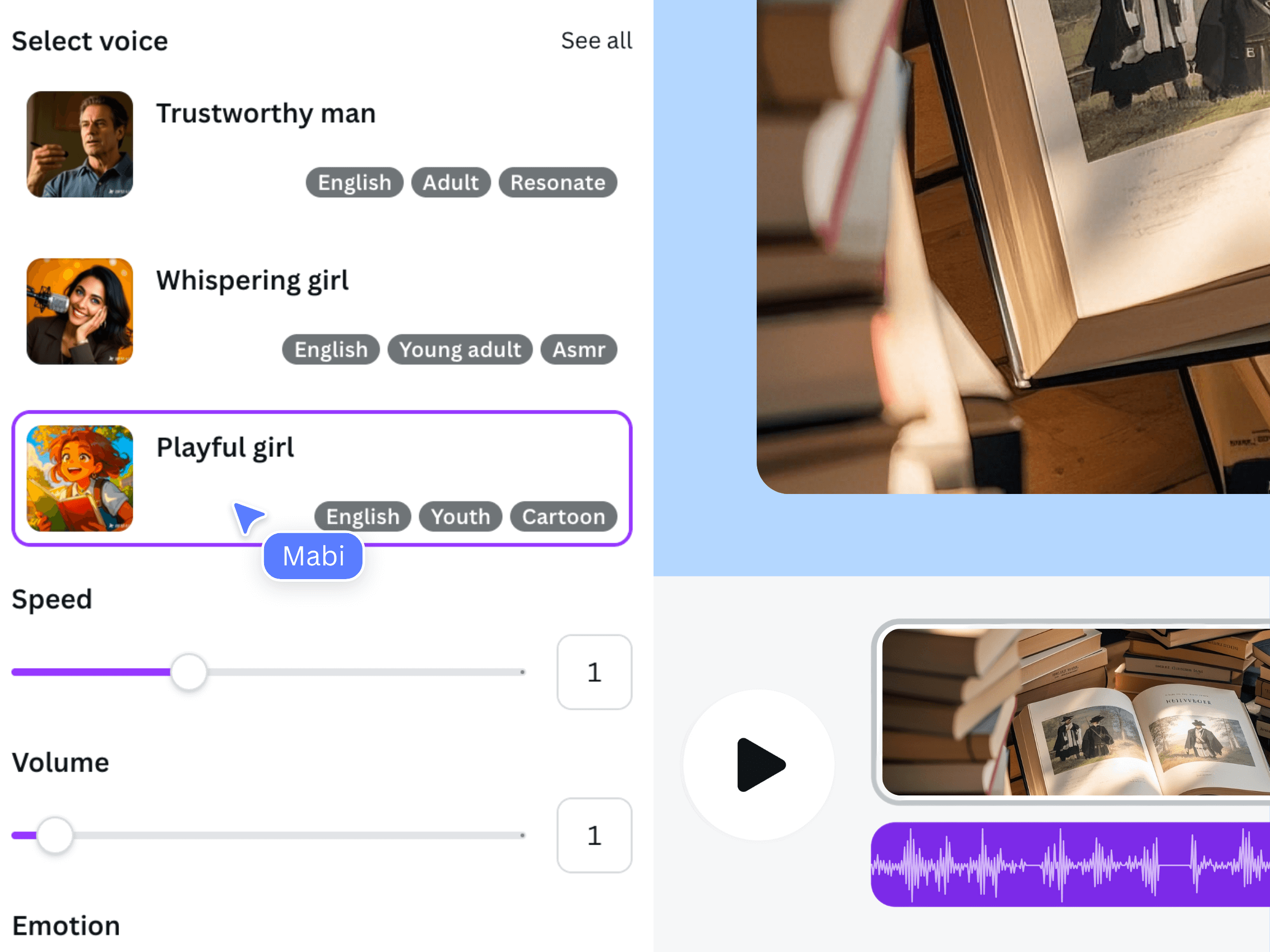
This is earlier official Voice AI promotional imagery. It is not a screenshot of a replacement command, the sample workshop video or an automatic overwrite feature.
Swap the audio manually and compare the timing
First identify whether the old passage is already a separate clip. To replace one sentence inside a continuous narration, isolate that complete passage at sentence boundaries using the timeline editing tools available, while preserving the material before and after it. If you cannot separate it cleanly, regenerate and replace the complete affected chapter or clip instead. Do not mute the entire narration track to remove one sentence.
Add the reviewed candidate at the intended point in your working design. Remove or mute only the isolated superseded segment, keeping the unaffected narration and other audio tracks intact. Preview from before the edit until after it: the surrounding words should remain complete, and the two takes should not play together.
Compare where the old and new passages begin and end. A change with the same number of words can still have a different duration. If the new take runs longer, adjust the visual section or edit the wording; do not hide a missing word with a rushed cut. Listen to the joins after moving or trimming a clip.
Update the information that depends on the old line
Review captions, headings, dates, quantities and any on-screen demonstration that refers to the changed wording. A corrected voiceover can still leave the video wrong if the screen shows the old information. Recheck the actual text rather than assuming a caption feature has detected the new audio.
For the fictional workshop example, changing Saturday to Sunday means checking every date card, spoken mention and closing reminder. If the revision adds the doors-opening instruction, give it an appropriate visual cue and enough reading time. Keep the video and any surrounding description consistent with the approved details.
A new clip is also a chance to notice an accidental gap or duplicate word beside the edit. Review a few moments on both sides instead of listening only to the new sentence in isolation.
Compare the final candidate with the accepted version
Use a focused comparison: first confirm that the intended correction is present, then check whether anything else changed. Listen for two narration tracks at once, clipped sentence endings, unexpected silence and shifts in visual timing. Keep background music low enough to hear the corrected words clearly.
- The corrected words are audible and match the approved script.
- The previous take is not also playing in the working video.
- Captions and visual information reflect the revision.
- The fresh exported video contains the complete new passage.
- The delivered filename or version note identifies the accepted revision.
Review a newly exported file, not an older download with a familiar name. Only after that check should you mark the replacement accepted and archive the earlier take. This creates a clear handoff if another person edits the project later.
Frequently asked questions
Will generating a new voiceover automatically replace my old Canva clip?
Do not assume it will. Confirm that the reviewed new take is placed in the intended timeline section and that the previous take is removed or muted in your working copy.
Can I replace only one spoken word?
A very small splice can be difficult to match in rhythm and tone. Consider regenerating a complete sentence or short passage, then compare the joins. Choose the smallest section that sounds coherent, not merely the fewest characters.
Why does a corrected line no longer fit the scene?
Wording, pronunciation and delivery can all alter duration. Compare the actual new clip with the scene and revise the script or visual timing. Matching word counts does not guarantee matching audio length.
Should I regenerate the whole video narration?
Not by default. Start with the affected passage, then check continuity and dependent information. A full regeneration may be appropriate for a deliberate voice or style change, but it creates a larger review task.