
To add AI voiceover to a real estate video in Canva, organize the property footage into a clear route, write narration from verified listing details, and generate the approved text with Voice AI. Match each spoken detail to the relevant shot, then review the exported tour for accuracy and readability.
This guide uses a fictional listing with an entry, living area, kitchen, and outdoor space. The example is a writing exercise, not a description of a real property or evidence that any particular feature, price, or condition has been verified.
Build a fact sheet before writing the narration
Create a small production fact sheet with the approved property name, relevant features, contact details, and the date the information was checked. Ask the listing owner to resolve uncertainties before they enter the script. A generated voice can read a number clearly, but it cannot confirm whether that number is accurate.
Separate what the footage shows from what requires supporting information. A shot can show a kitchen island; it does not prove the age of an appliance, ownership of a view, or future development plans. Avoid converting visual impressions into factual guarantees.
- Verified information: use the approved source and note when it was checked.
- Visible details: describe the room or layout without exaggerating its condition.
- Unknown details: omit them until a responsible person confirms them.
- Time-sensitive details: review them again before sharing the final video.
Use authorized photos and clips of the actual property. Ask the responsible professional to review the final script and any required disclosures for the place where it will be used. This production checklist is an accuracy workflow, not legal advice or a guarantee that a listing meets local requirements.
Plan a tour route that helps viewers understand the space
Choose a route that a visitor could follow: entry, living area, kitchen, then the outdoor space. Name a room when the viewer can see it. Jumping between unrelated rooms while listing features can make a small video feel busy without explaining the layout.
Sample narration: “Start at the entry and continue into the main living area. The next shot shows the kitchen and its connection to this space. From here, the tour moves to the outdoor area. For the current listing details and a viewing appointment, contact the listing team.”
- Opening: identify the property using approved information.
- Orientation: show the entry and the main route through the interior.
- Details: connect each chosen feature to its own clear shot.
- Closing: provide a readable contact step and direct viewers to current details.
The sample intentionally avoids unverified measurements and neighborhood promises. Replace general descriptions only when you have the necessary information. An attractive view or nearby location can be shown honestly without claiming that every viewer will have the same experience.
Generate a calm, intelligible Voice AI track
Open the property video design in Canva and find Voice AI in Apps. Enter a short approved passage, choose an available voice, and listen to the generated sample. Add the narration to the design only after checking the property name and any numbers or abbreviations you retained.
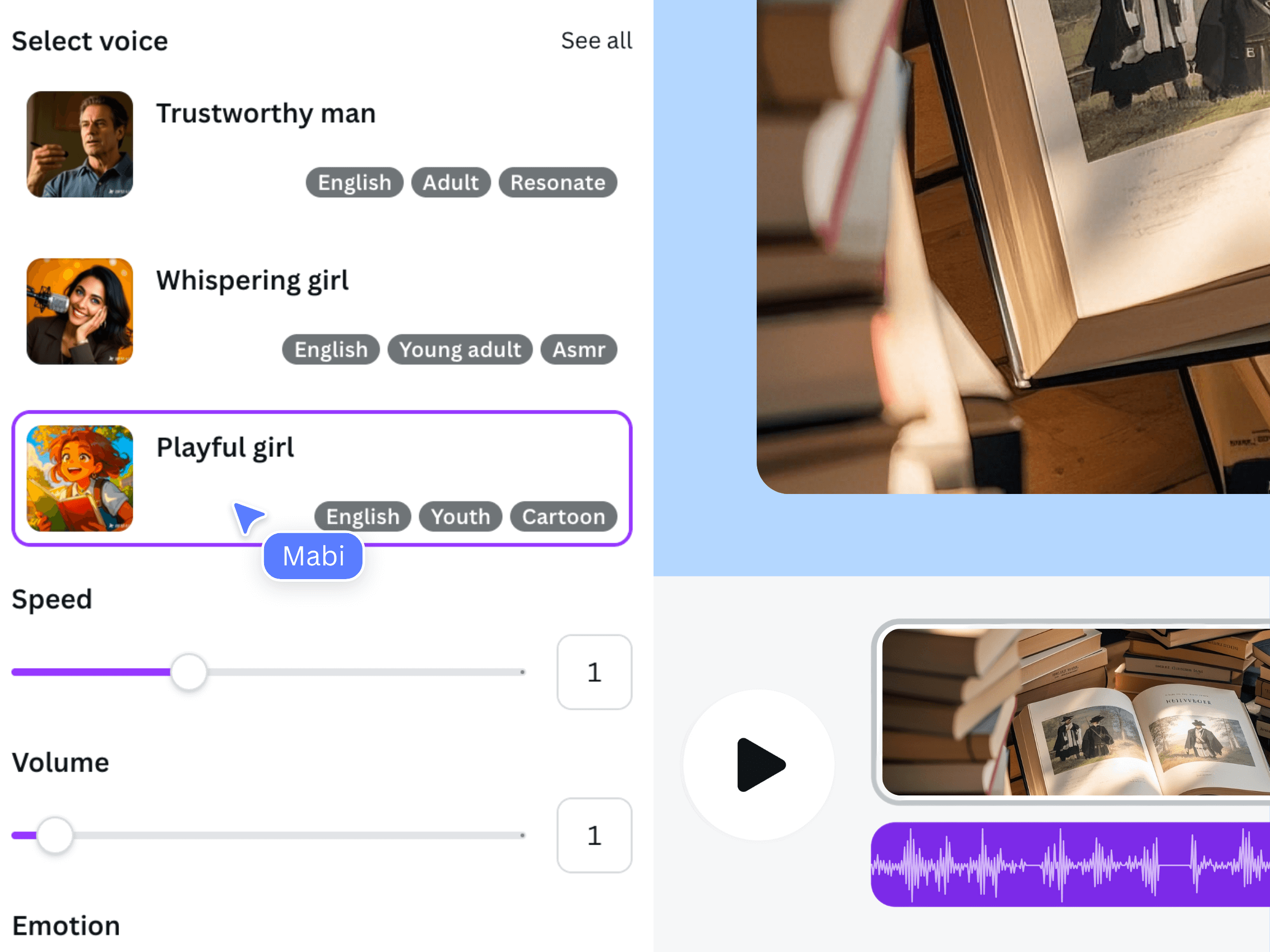
The image is official Voice AI promotional material from an earlier interface, not a screenshot of this fictional property tour. Use your own authorized property media for the actual listing. The example helps explain where narration fits in the workflow rather than showing a finished real estate video.
Generate separate clips for the introduction, room sequence, and closing contact information. The closing is especially useful to keep separate because availability or the preferred next step may change. Record the script revision and chosen delivery so the editor can review later changes consistently.
Prefer clear delivery over a dramatic sales performance. If an address or agency name is pronounced incorrectly, adjust the wording and regenerate that passage. Do not treat an approximate pronunciation as acceptable simply because it sounds fluent to someone unfamiliar with the name.
Match every spoken detail to the right property shot
Place the narration on the Canva timeline and arrange the footage around the spoken sequence. Keep each room on screen long enough for a viewer to recognize it. Trim unnecessary camera movement while preserving the orientation that makes the tour understandable.
Check transitions closely. A sentence about the kitchen should not begin over the outdoor shot unless the wording clearly signals the change. Avoid using a close-up from one room to imply a feature exists in another. The goal is a coherent tour, not just a series of attractive images.
- Use wide views to establish a room before emphasizing a detail.
- Keep labels readable and consistent with the approved property information.
- Lower music when it competes with names or contact instructions.
- Give the contact screen enough visual time after the final sentence.
If the narration is longer than the available footage, remove repeated adjectives or unnecessary directions. Do not pad the tour with unrelated property footage. When a detail matters but has no suitable shot, obtain the right media or explain the limitation in the approved listing material.
Check the final tour and keep details current
Review the exported file from start to finish, including the final contact screen. Have the listing owner compare it with the current approved details. This second check catches problems that a voice-only review misses, such as a changed phone number or an old label preserved in the video.
- Does every room name match the shot being shown?
- Are any measurements, availability statements, or other factual claims still current?
- Are there visible personal details or private documents that should be removed?
- Can viewers understand the voice on a normal phone speaker?
- Does the contact screen direct them to an appropriate, current next step?
Keep the editable Canva design and the approved script together. If listing information changes, update both the spoken and visible details before sharing another copy. A fluent AI narration track should make accurate information easier to follow, never make uncertain information sound confirmed.
Frequently asked questions
Can AI write all the property facts for the voiceover?
Use verified listing information as the source. AI-generated wording can help present approved facts, but it does not inspect the property, validate measurements, confirm availability, or establish the accuracy of a claim. Have the responsible listing professional review the script.
Should a property tour describe every room?
Choose the rooms and details that help the viewer understand the property and the route through it. An incomplete but clearly labeled short tour is more useful than a rushed list. Avoid implying that omitted spaces were shown or assessed.
What if the address or agency name sounds wrong?
Listen specifically for those names before placing the clip in the final edit. Revise the written wording to guide pronunciation, regenerate the short passage, and ask someone familiar with the name to check the result.
How do I update a listing video when information changes?
Keep contact and time-sensitive passages separate where possible. Update the approved script, visible labels, and narration together, then export and review a new copy. Check the places where the older video was shared so viewers receive current information.