
A podcast intro video gives a listener three things quickly: the name of the show, the subject of the episode, and a reason to keep listening. In Canva, you can build the visuals, create a spoken introduction with Voice AI, and arrange the narration on the video timeline.
This walkthrough produces a promotional video, such as a trailer or episode teaser, exported as MP4. It does not promise a standalone MP3 file for your podcast host. Keep the audio production and publishing requirements of your podcast feed separate from the short video you are designing here.
Decide what belongs in the intro and what changes each episode
Start with the job of the clip. A show trailer introduces the overall promise, while an episode teaser introduces one specific conversation. Trying to do both in every sentence makes the opening harder to follow. Write a one-line brief before opening a template: a new listener should understand this episode's practical question.
For an imaginary gardening podcast, the evergreen line might be: Welcome to Small Plot Stories, a podcast about growing food in ordinary spaces. An episode-specific line could then ask: Can a sunny windowsill become a useful herb garden? The example is original planning copy, not a recorded product demonstration or a real show's endorsement.
- Keep stable: show name, a short description, and an appropriate host or brand identifier.
- Change per episode: the central question, guest name when relevant, and the invitation to hear the full conversation.
- Leave out: a long list of every platform, repeated introductions, and claims the episode does not actually support.
Write a spoken opening that leaves room for the show
An intro is a doorway rather than the whole episode. Draft a few short sentences and read them aloud before generating speech. If you have already designed a fixed opening animation, treat its duration as a constraint to test, not as proof that any script will fit. The generated read determines the timing you actually have.
Try this editable sample: Welcome to Small Plot Stories. This week, we turn a spare windowsill into the start of an herb garden. Hear what to plant first, what to skip, and how to make a small space work. Listen to the full conversation wherever you follow the show.
Replace the distribution phrase with a truthful invitation for your own episode. If you have not published the full conversation, use an accurate upcoming-episode message instead. Put stage directions in your notes rather than in the text sent for narration; otherwise a reader may speak the instruction itself.
Create and approve the narration before decorating the timeline
Open your video design, find Voice AI in Canva's Apps area, and enter the approved text. Choose an available voice whose delivery matches the show. Generate a short test containing the show name and any guest name before committing to the complete intro. Listen for pronunciation and an understandable ending, not simply a dramatic opening.
If the read feels crowded, shorten the wording first. You can also test an available speaking-speed setting, but compare the result in the context of the visuals. Save the accepted script and voice choices in your project notes so that a later episode can sound intentionally related without assuming the software will remember every preference.
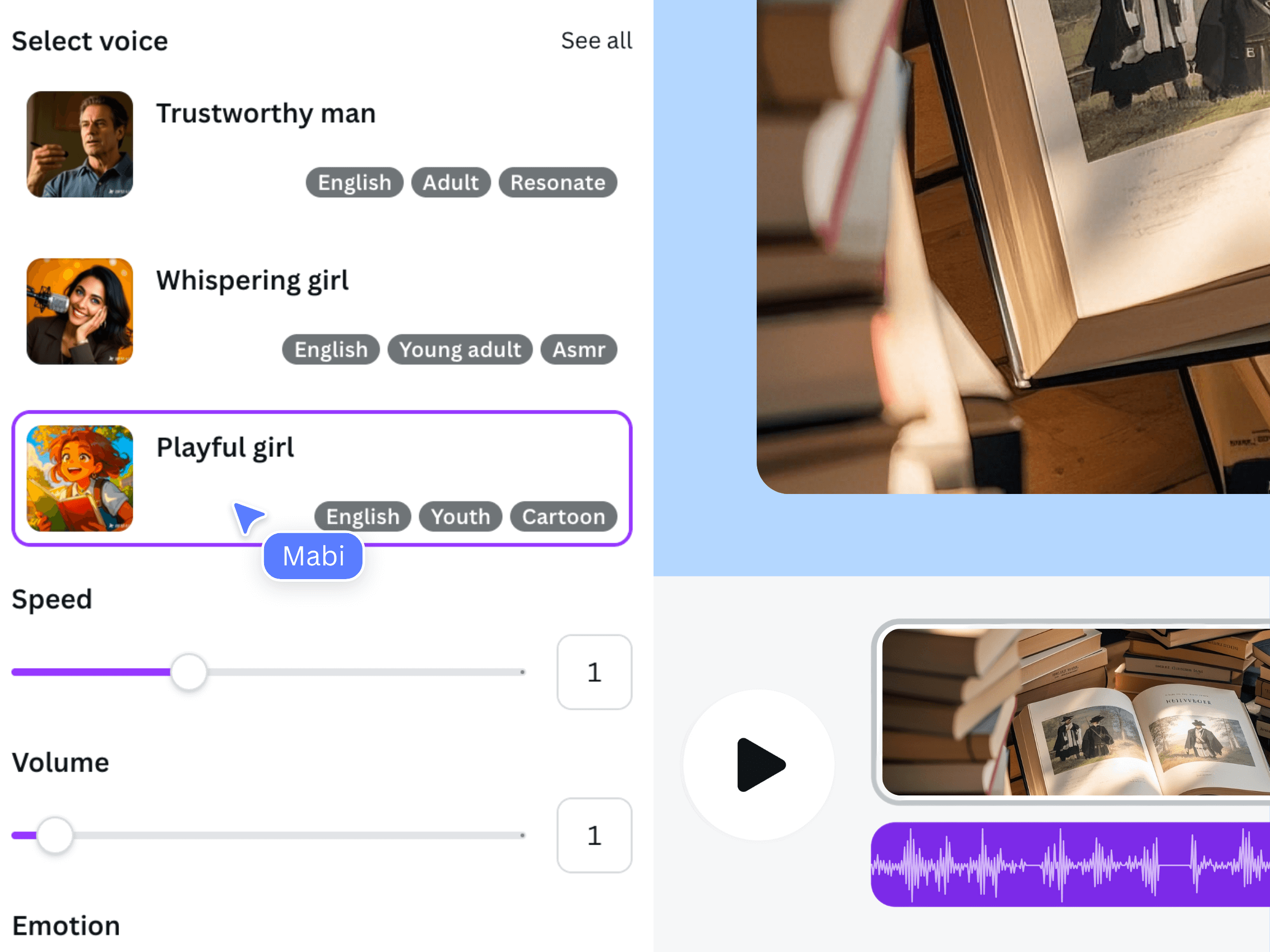
The official Voice AI promotional illustration above shows a general narration workflow from an earlier interface. It is not a screenshot of the fictional podcast example, and the controls in your account may look different.
Build a visual sequence around the approved read
Use a small number of purposeful scenes. For the gardening example, the opening can establish the show title, the middle can show an owned photograph of a windowsill, and the closing can display the episode question and next action. Avoid showing an unfamiliar guest's photograph merely because it suits the theme; use imagery you have permission to include.
- Opening cue: keep the show name visible while it is being spoken, without competing with a second headline.
- Topic cue: introduce the episode image or short visual when the narration changes from the show to the specific question.
- Closing cue: display one listening instruction, then leave enough time to understand it before the clip ends.
These are editorial cue suggestions, not guaranteed second-by-second timings. Play the whole sequence and adjust scene lengths around the actual narration. If music is included, check the words with the music on; a pleasant instrumental on its own can still distract from a short spoken introduction.
The official demonstration shows how Voice AI fits into a Canva workflow. It uses an earlier interface and does not demonstrate an automatically assembled podcast trailer. Your script, scene timing, and final audio review remain part of the editing work.
Review the exported MP4 as a listener would
Play the design from the beginning, then download the relevant pages as an MP4 video. Open that downloaded file in a separate player and check it with sound. This catches a different set of mistakes from looking at the Canva canvas, including an abrupt final syllable or an unintended extra scene.
Check the title at the size people will actually see on a phone. Listen once without watching the image: the show and episode should still make sense. Then watch once with the volume low to see whether the visual invitation is understandable. If you add captions, proofread the show name rather than trusting the first recognition result.
Keep an evergreen master and make an episode-specific copy before replacing the hook. Name the final video clearly enough to distinguish the episode, aspect ratio, and revision. A useful handoff includes the approved script, final MP4, and a note identifying any music or photographs that need their own permission checks.
Frequently asked questions
Can this workflow create an MP3 for my podcast feed?
This guide creates an MP4 promotional video. Do not assume that a video design or an extracted audio track provides a separate MP3 download. Use an audio-production and hosting workflow that meets your podcast platform's requirements when preparing the actual episode file.
Should I generate a new introduction for every episode?
Keep the show identity consistent, but update the episode-specific promise. A separate evergreen script makes review easier. Generate only the wording you need, then listen to the join and overall delivery; a reusable text template does not guarantee seamless audio edits.
Can I use a famous presenter's voice for the opening?
Choose an available voice you are entitled to use rather than implying that a recognizable person hosts or endorses the show. This tutorial does not describe voice cloning. Check the applicable product terms and permissions for your intended use.
Why does the intro feel long even when the script is short?
A short script can still contain several introductions, unfamiliar names, and an unnecessary setup. Remove repeated information, put the episode's question earlier, and compare the revised read with the actual visuals. The point is a clear invitation, not a particular number of words.