
Natural-sounding narration starts with a script that someone could comfortably say aloud. In Canva, use Voice AI to try a suitable voice and speaking speed, then improve the sentence that sounds awkward. A different voice cannot always rescue text written for a report rather than a listener.
This guide uses a short welcome message to show what to revise and how to compare versions. The examples are scripts for your own listening test, not fabricated audio samples or a promise that one setting works for every voice.
Rewrite for the listener's first hearing
A viewer cannot scan backward through speech as easily as through text. Put the main action early, replace abstract phrases with concrete verbs, and break up sentences that contain several instructions. Read the draft aloud before generating it.
Before: written like an announcement
“In order to facilitate the successful commencement of your project, it is recommended that the relevant materials be prepared prior to proceeding with the subsequent stages.”
After: written to be spoken
“Before you start, gather the files you will use. Keep them in one folder so they are easy to find. Then open your project and choose the first item you want to work on.”
The revision names the action and gives the listener a reason. It also creates places for the voice to pause. Keep the level of formality appropriate to the subject; conversational does not have to mean slang or constant enthusiasm.
Choose a voice with the actual script
Open Voice AI by imagination-soft in Canva and listen to candidate voices. A voice that sounds good in a short sample may handle your product name or a technical phrase differently. Generate a brief passage containing those difficult words before producing a longer narration.
Judge the voice against the task. A calm explanation, a personal story, and an upbeat invitation need different delivery. Choose the one that makes the meaning easy to follow, rather than the most dramatic sample.
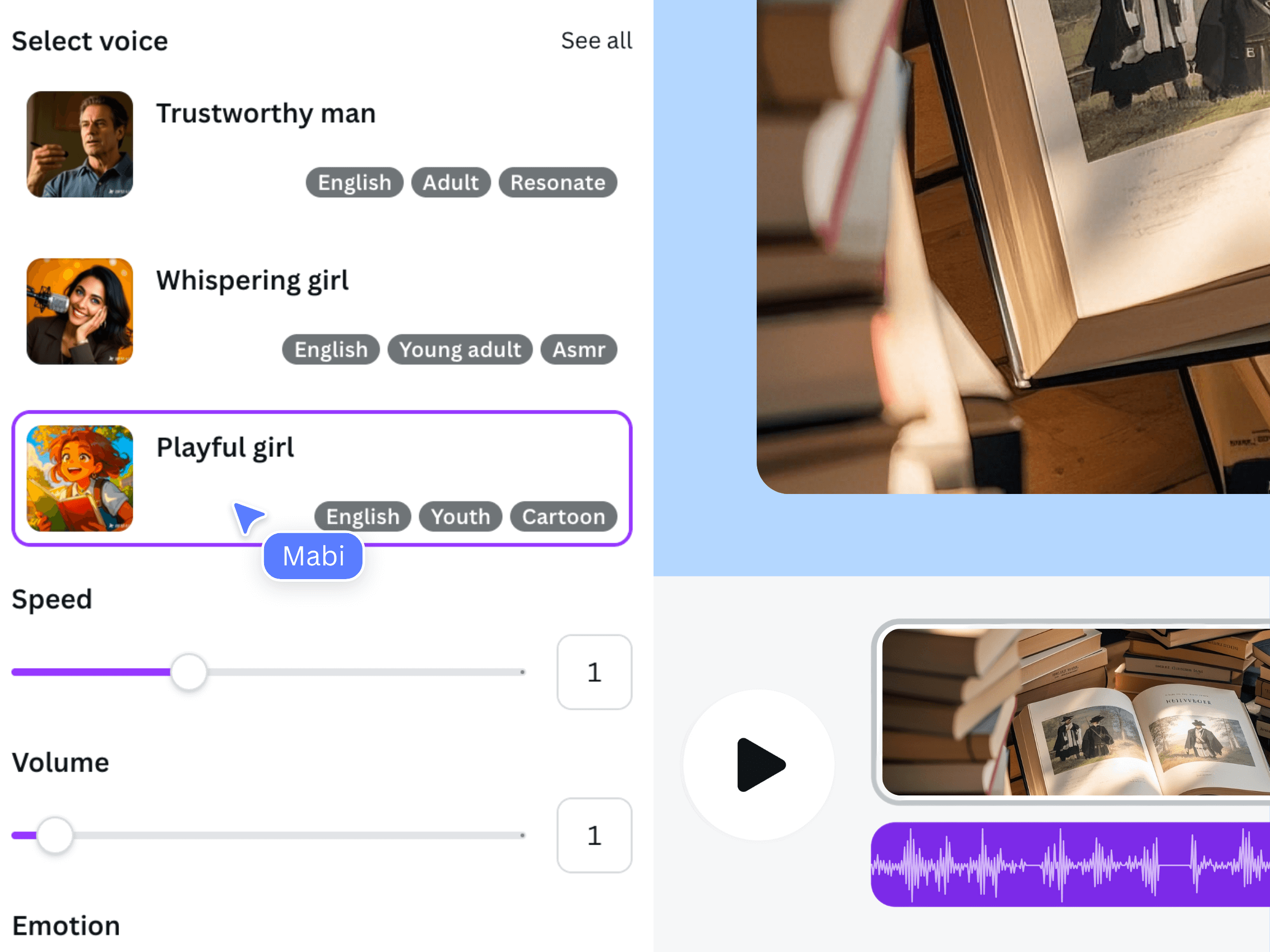
The official illustration shows voice choices and delivery controls. Controls may vary with the voice and interface version; use the options currently available in your app.
Fix pronunciation before adjusting style
Check names, acronyms, dates, measurements, and words with more than one pronunciation. Expand an acronym into words if the abbreviation is unclear when spoken. Write a number in the form you want the listener to hear when the compact form produces an ambiguous result.
For example, “Read version two before the meeting” may be clearer than a label such as “Review v2 pre-meeting.” Keep the displayed label on the slide accurate even if the spoken wording is expanded. Do not change a factual value merely to make a sentence easier to synthesize.
Punctuation can help communicate sentence structure, but it is not a guarantee of an exact pause length. Avoid inserting markup or special pause commands unless the selected tool explicitly supports them. Regenerate and listen to the result.
Compare one delivery change at a time
Use the same passage for each test so you know what changed. Begin with the voice's default speed, then try a small speed adjustment. If emotion settings are available for that voice, test them separately instead of changing voice, speed, and emotion all at once.
- Meaning: can you understand the sentence without reading along?
- Pronunciation: are important names and terms correct?
- Pace: do key ideas have room to land without long, distracting gaps?
- Tone: does the delivery fit the scene and the intended audience?
- Consistency: does the next segment sound like part of the same narration?
Keep a short note identifying the script version, voice, and settings you prefer. There is no need to generate many full-length versions to compare a single difficult sentence.
Check the voice in the finished design
Add the chosen narration to Canva and listen with the visuals. A voice may sound relaxed in isolation but rushed when the viewer also has to inspect a diagram. Extend the scene or simplify the on-screen information before slowing every part of the narration.
If background music hides consonants or sentence endings, lower the music and listen again. Check the exported MP4 on ordinary speakers as well as headphones. Revise the smallest section that needs work, then check its transition into the surrounding clips.
Frequently asked questions
Is a slower voice always more natural?
No. A pace that suits a careful explanation may feel unnatural for a brief invitation. Use clarity and the scene's purpose as your criteria, and compare actual generated audio rather than choosing a speed by rule.
Will emotion settings be available for every voice?
Do not assume so. Use the controls offered for your selected voice. If a particular style is unavailable, try another appropriate voice or revise the script to communicate the intended tone more clearly.
Can punctuation create an exact one-second pause?
Ordinary punctuation expresses structure, not a precise editing timeline. For a pause with a specific visual purpose, consider separate narration segments and position them in Canva with space between them.
Why does the script sound good in text but awkward in speech?
Long clauses, abbreviations, and repeated formal phrases can be difficult to follow aloud. Read the sentence once without looking ahead; if you stumble, simplify it before generating another version.