
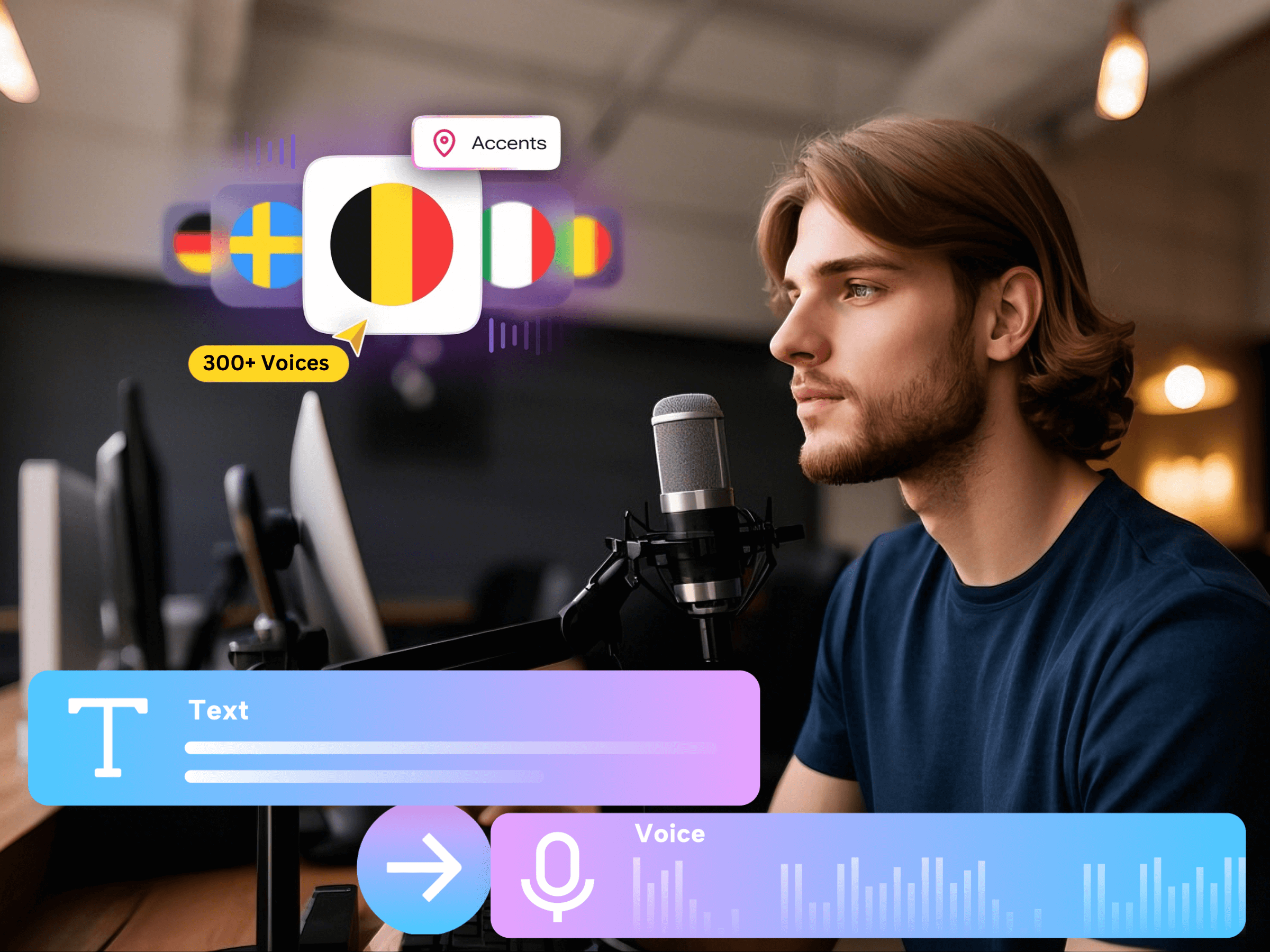
Create a separate, reviewed script for each language, choose a matching voice in Voice AI inside Canva, and generate each version independently. Then adjust the Canva visuals and timing for that version. A translated sentence can be longer or shorter than the original, even when it conveys the same message.
Voice selection and translation are different jobs. This workflow uses Voice AI for speech generation; it does not assume that choosing a language automatically translates the text, clones a speaker, or makes every language fit the original video's timing.
Prepare a master script and a small terminology list
Start with a script whose meaning is settled. Mark product names, numbers, dates, and the action you want the viewer to take. Decide which terms should stay in their original form and which should be adapted for the audience.
Avoid wording that depends on an English pun or a phrase such as “hit the ground running” when the same message can be expressed directly. The translation should explain the intended action, not preserve every word at the expense of clarity.
- Audience: identify the target language and, where relevant, the regional variety.
- Fixed terms: record product names and labels that must stay consistent.
- Meaning: note any instruction that cannot be shortened or softened.
- Review: assign someone who understands the target language to check the script and audio.
Adapt the message before generating speech
Here is a simple original example: “Choose a photo, add a title, and preview your design.” A French version could be “Choisissez une photo, ajoutez un titre, puis prévisualisez votre création.” The words differ, but the order of actions stays the same.
Treat that sentence as an illustration of adaptation, not a universal translation style. Your audience may prefer a more formal register, different terminology, or a different description of a button. Verify the translated wording against the interface they will actually use.
Keep the original and adapted scripts side by side, with one row or section for each scene. This makes it easier to notice a missing instruction and to revise only the affected narration later.
Select a voice that matches the script
Open Voice AI by imagination-soft within Canva. Browse the voices available for the target language and listen before choosing. Where regional variants are offered, select the one that fits your audience rather than assuming every voice labeled with a language has the same accent.
Generate a short test containing a product name, a number, and a representative sentence. Ask your reviewer to check meaning and pronunciation together. A fluent-sounding voice can still pronounce a name incorrectly or read an ambiguous date in an unintended way.
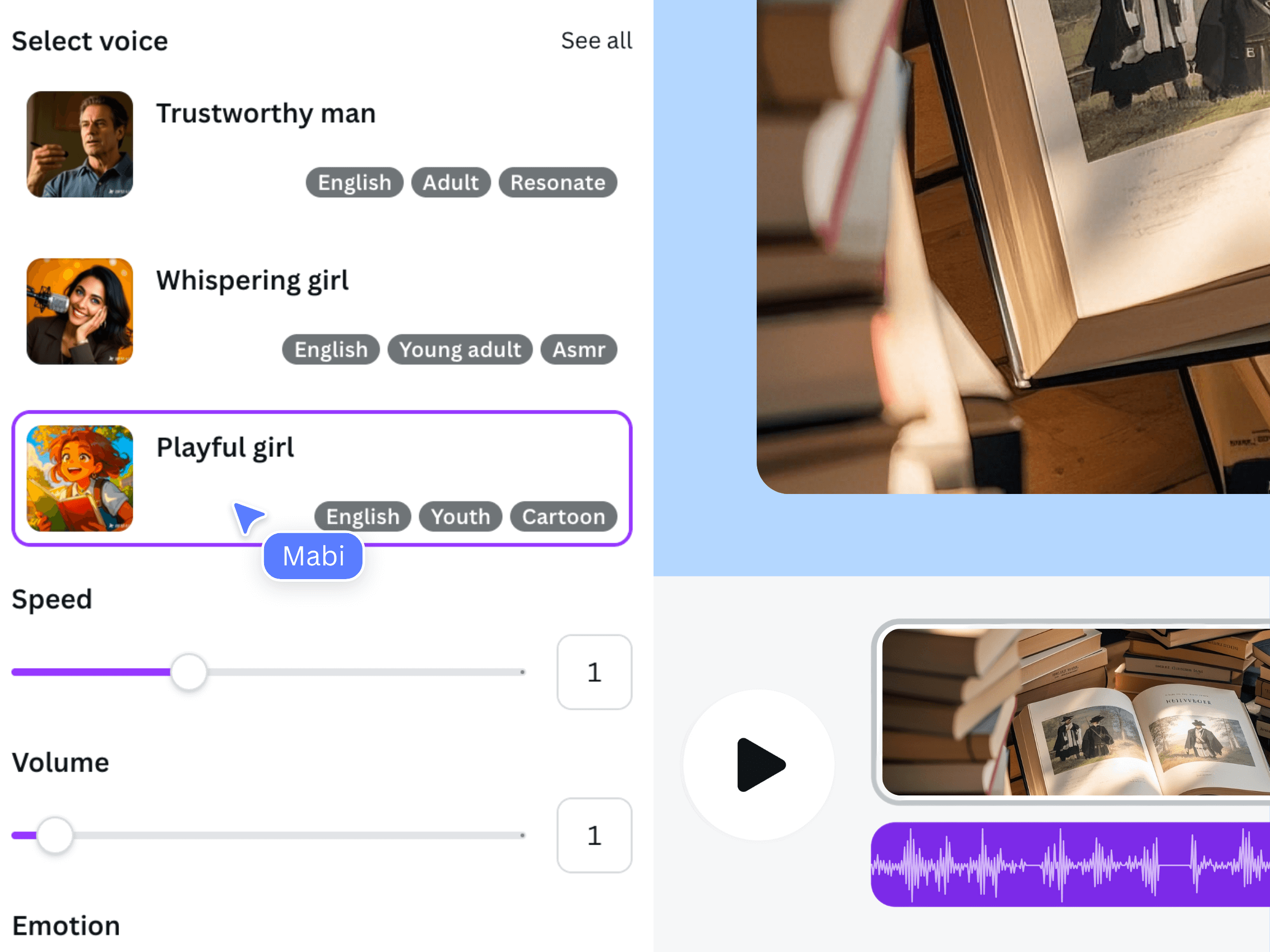
The official product illustration shows voice selection and delivery controls. Check the current app for available languages and voice-specific settings rather than treating this illustration as a complete catalog.
Build one editable Canva version per language
Duplicate the design before replacing the original narration. Use clear project names such as “Welcome video — English” and “Welcome video — French.” Replace the on-screen text as well as the voice, including small labels, ending instructions, and any captions.
Add the generated audio and adjust the scenes to its actual duration. If the translation runs longer, first check whether the wording can be made more concise without losing meaning. If it cannot, give the visual more time. Do not accelerate unfamiliar terms just to preserve the original cut.
Keep the visual action aligned with the translated phrase. The point at which a sentence names an object may move, so a cut that worked in English may happen too early in another language.
Review and export each language separately
Have a fluent reviewer watch the whole design with the sound on. Ask them to confirm that the narration, on-screen text, and visible action agree. Then ask for a second pass focused on names, numbers, pronunciation, and the final next step.
Export each approved version as an MP4 and label the file clearly by language. Inspect the exports rather than assuming that checking one language validates them all. Keep the approved scripts with the editable Canva versions so future product changes can be applied consistently.
Frequently asked questions
Does choosing a French voice translate an English script?
Do not rely on voice selection to translate text. Prepare the French script first, check it, and then generate it with a suitable voice. Translation and narration review remain separate steps in this workflow.
Can I use the same voice identity in every language?
Available voices and their supported languages vary. Check the current app rather than assuming a chosen voice can deliver every language with an identical identity or accent.
Why is the translated narration longer?
Languages express ideas with different wording and rhythm. Even a short translation can change the audio duration. Adjust the scene timing to the reviewed narration instead of matching the original word count.
What if no one on my team speaks the target language?
Arrange a competent language review before publishing. Listening for smoothness alone will not reveal a mistranslated instruction, an incorrect number, or an inappropriate expression.