
When a Canva voiceover is silent, start by finding the first place where the sound disappears. Test the generated clip, the design timeline, and a downloaded MP4 separately. Rebuilding the whole video before identifying that boundary can waste work and introduce a second problem.
This guide uses Voice AI as the narration source, but the later checks apply to audio editing and export in Canva. It does not promise to recover unsaved speech or deleted media. Keep your script and preserve the current design before changing tracks, refreshing the editor, or trying a new export.
Find the first silent stage
Write down one precise symptom. Cannot hear anything is too broad; I can hear the generated preview but not the design timeline is useful. Use one short, recognizable sentence as a diagnostic clip and test each stage in order. Make sure you are listening to the current revision rather than an older downloaded file.
- Generated clip is silent: check playback and generation before editing the design.
- Generated clip plays, timeline is silent: inspect the inserted track, its position, and its volume.
- Timeline plays, downloaded video is silent: inspect export format, page selection, and the downloaded file.
- Downloaded video plays elsewhere: inspect the original playback device or application rather than regenerating narration.
An original test phrase such as This is the opening narration makes it easy to recognize the intended track. Keep the diagnostic phrase out of your final release. Record what each test proves so that a collaborator does not repeat the same work or delete the only working asset.
If the generated preview has no sound
First play another known working audio source on the same device. Check the system output, headphones, application volume, and browser-tab mute state. These are local checks, not claims about a defect in Voice AI. If other sound is also silent, resolve that playback issue before spending time generating replacement clips.
If other sound works, confirm that generation has finished and that you are starting the preview from a point with speech. Keep a copy of the narration text outside the input field. If you receive an error, record its exact wording and time rather than inventing an explanation such as a quota problem. Review the app's available guidance or contact support when the cause is unclear.
If you test a new short generation, preserve the original first and avoid repeatedly submitting the entire script. A successful new preview narrows the issue, but does not prove an earlier incomplete or unsaved clip can be recovered. Use the last verified working asset as the basis for the next check.
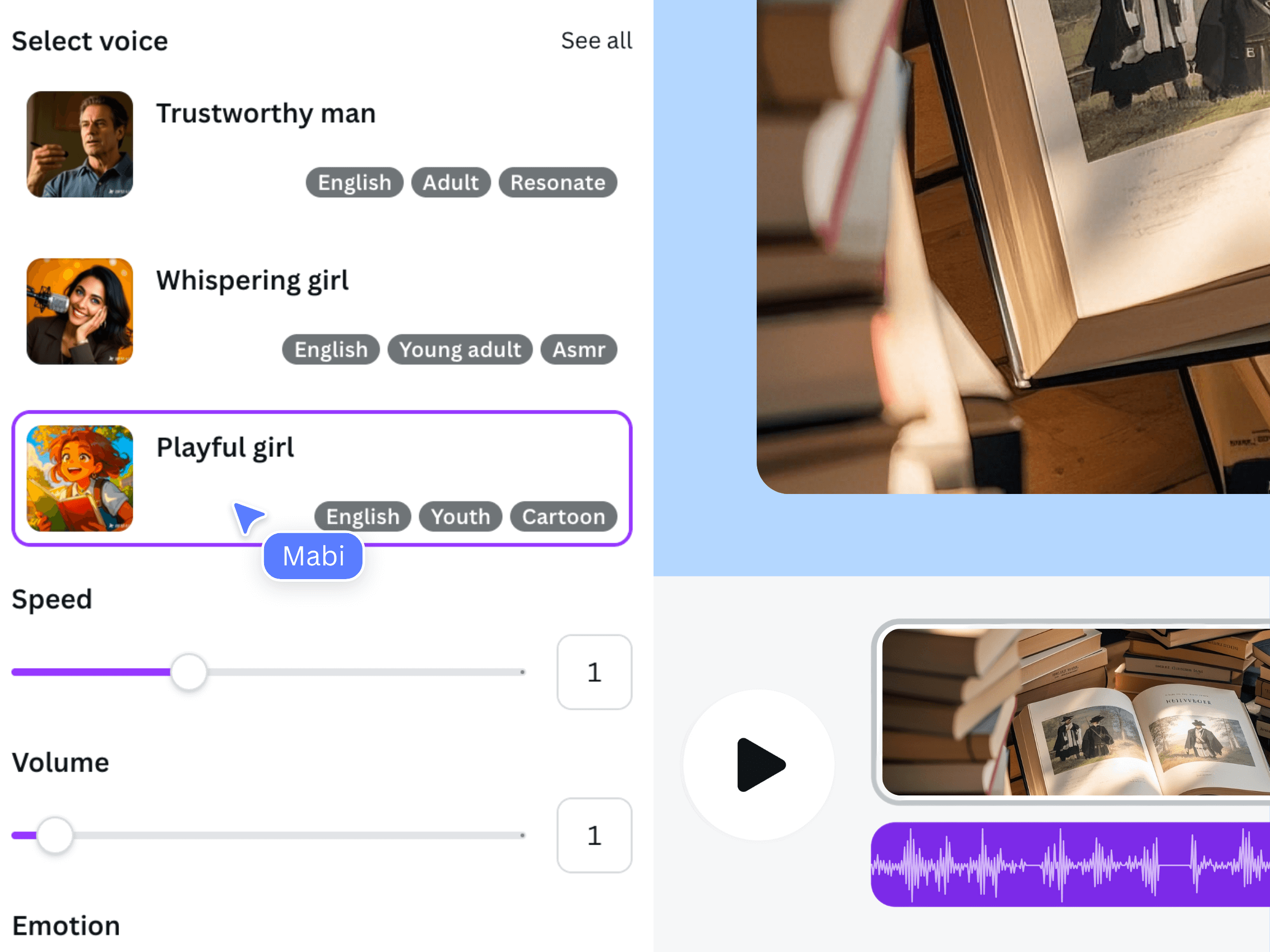
The official Voice AI illustration above shows an earlier general narration interface. It is not a screenshot of an error state, and it does not demonstrate automatic recovery. Your controls and available messages may differ.
If the preview works but the Canva timeline is silent
Check that you actually added the accepted narration to the design. Hearing it in an app preview is not the same as hearing a track in the timeline. Select the relevant audio and examine where it begins and ends. If it sits after the visible scene, starting the design at the beginning may play a silent opening before the narration starts.
Inspect the selected track's volume rather than only the computer volume. Then compare its duration and position with the section you are previewing. If you have several similarly named clips, listen to them one at a time to identify the accepted revision. Make destructive changes only in a copy when you are not sure which clip is needed.
For a controlled test, reduce the project to one scene with the known working narration in a separate copy. If that version plays, return to the original and examine what differs: placement, trims, additional audio, or the selected pages. This is an isolation technique, not a recommendation to discard the larger design.
The official video demonstrates the general Voice AI creation workflow using an earlier interface. It can help distinguish creating a clip from using it in a design. It is not a troubleshooting recording of the symptoms discussed here.
If the editor plays but the exported file does not
Download the intended pages as an MP4 video. Image formats do not carry a voiceover, and a silent GIF should not be treated as a failed narration export. Confirm that the export includes the scene and time range where your accepted track is placed. Wait for relevant uploads or processing to finish before trying the download again.
Open the downloaded file in a separate player and check its mute state. Test a second player or device if the result is ambiguous. Use a clear filename for each trial, such as narration-check-revision-two, so you do not accidentally inspect yesterday's silent export after fixing today's timeline.
If only part of the video fails, make a design copy and isolate the affected pages. Keep notes about which subset works. Canva's download guidance recommends narrowing a problematic design to find the failing content. Do not remove every asset at once: changing one thing per test makes the result useful and preserves a route back to the original.
Escalate with a reproducible test and preserved assets
If the issue continues, collect the smallest example that demonstrates it. Include the design type, device and browser, whether the generated preview plays, whether the timeline plays, and whether a fresh MP4 plays outside Canva. Record the error text exactly, but avoid sharing private scripts or account information unnecessarily.
Check Canva's current service status when playback or downloading fails across several designs. An application issue and a Voice AI generation issue may need different support channels. Report the stage where the problem begins rather than describing every failure as the voice app not working.
Before closing the project, keep the latest script and any successfully saved media. After a fix, run one final start-to-finish playback and test a new downloaded MP4. Remove the temporary diagnostic sentence, confirm the intended track is present only once, and let a reviewer hear the same file you plan to distribute.
Frequently asked questions
Does hearing the app preview mean narration is already in my design?
No. A preview confirms that the clip can play at that stage. Check that the chosen audio has been added to the Canva design and covers the part of the timeline you are playing. Treat those as separate verification steps.
Why is there no voiceover in my GIF or image download?
Those formats are not a narrated video delivery format. Use an MP4 video for the video workflow described here, then inspect the downloaded file with sound enabled. Selecting a video format does not replace checking page selection and track placement.
Should I regenerate the entire script when the export is silent?
Only after testing where the audio disappears. If the accepted narration plays in both its preview and the Canva timeline, start with export and playback checks. Regenerating everything can change timing and pronunciation without addressing the actual failure.
Can this guide recover a deleted or unsaved narration clip?
No recovery is guaranteed. Preserve your script and saved assets before troubleshooting, and check the product's current support options for the specific situation. A new successful generation does not prove that an old unsaved clip can be restored.