
An explainer video should connect a recognizable problem to a concrete action. In Canva, plan that sequence, write the narration, generate it with Voice AI, and build scenes that show what the words mean. The strongest explanation is often a small, complete example rather than a list of every feature.
We will use a fictional appointment reminder tool to demonstrate the structure. Its details are writing examples, not claims about Voice AI or a real service. Replace them with capabilities and evidence from your own product before publishing.
Define the problem and the action in one sentence each
Write the problem from the viewer's perspective: “I keep searching through messages to remember when my appointment starts.” Then write the useful outcome: “I want the time and details in one place.” This keeps the explanation grounded in a task rather than abstract promises.
Choose one next action for the ending, such as checking a sample reminder or creating a first appointment. Avoid asking viewers to sign up, share, subscribe, and browse several features at once. The video should make the next step feel connected to the problem it just explained.
Turn the story into four scenes
Start with a rough storyboard using plain text. For each scene, write what the viewer sees, what the voice says, and what new information it adds. If a scene repeats the previous one, remove it or give it a different job.
- Problem: show a person searching several messages for an appointment time.
- Solution: show a single appointment summary with the essential details.
- Demonstration: show the actual steps for entering or reviewing an appointment.
- Next action: show the place where the viewer can try the demonstrated workflow.
Use actual product screens for the demonstration when you have them. If you use a conceptual illustration, label it appropriately; a polished fictional interface should not be presented as proof that a feature exists.
Write a script the visuals can support
Here is an original example for the fictional reminder tool. Each paragraph corresponds to one scene and should be changed to match the real product you are explaining.
Problem
“Your appointment is booked, but the time is buried in a conversation. When you need the details, you have to search for them again.”
Solution and demonstration
“Keep the essentials together: the date, the time, and where to go. Add an appointment, check the details, and save the summary. When plans change, update the information in the same place.”
Next action
“Start with your next appointment. Put the details in one place, then check that they are correct before you rely on them.”
This script describes observable actions. It avoids unsupported savings, customer counts, and guarantees. If you want to include a performance claim, gather evidence for that claim first and make the relevant conditions clear.
Generate the voiceover and assemble the scenes
Open Voice AI by imagination-soft in Canva. Choose a voice that fits the product and audience, then test the opening and the most important product term. Adjust speed before generation, and use any available emotion setting only if it supports the explanation.
Generate the narration in scene-sized sections and add the approved clips to your Canva design. Build each scene around its corresponding explanation. If the voice mentions a field or action, make it visible at that point; do not leave the viewer looking at unrelated decoration.
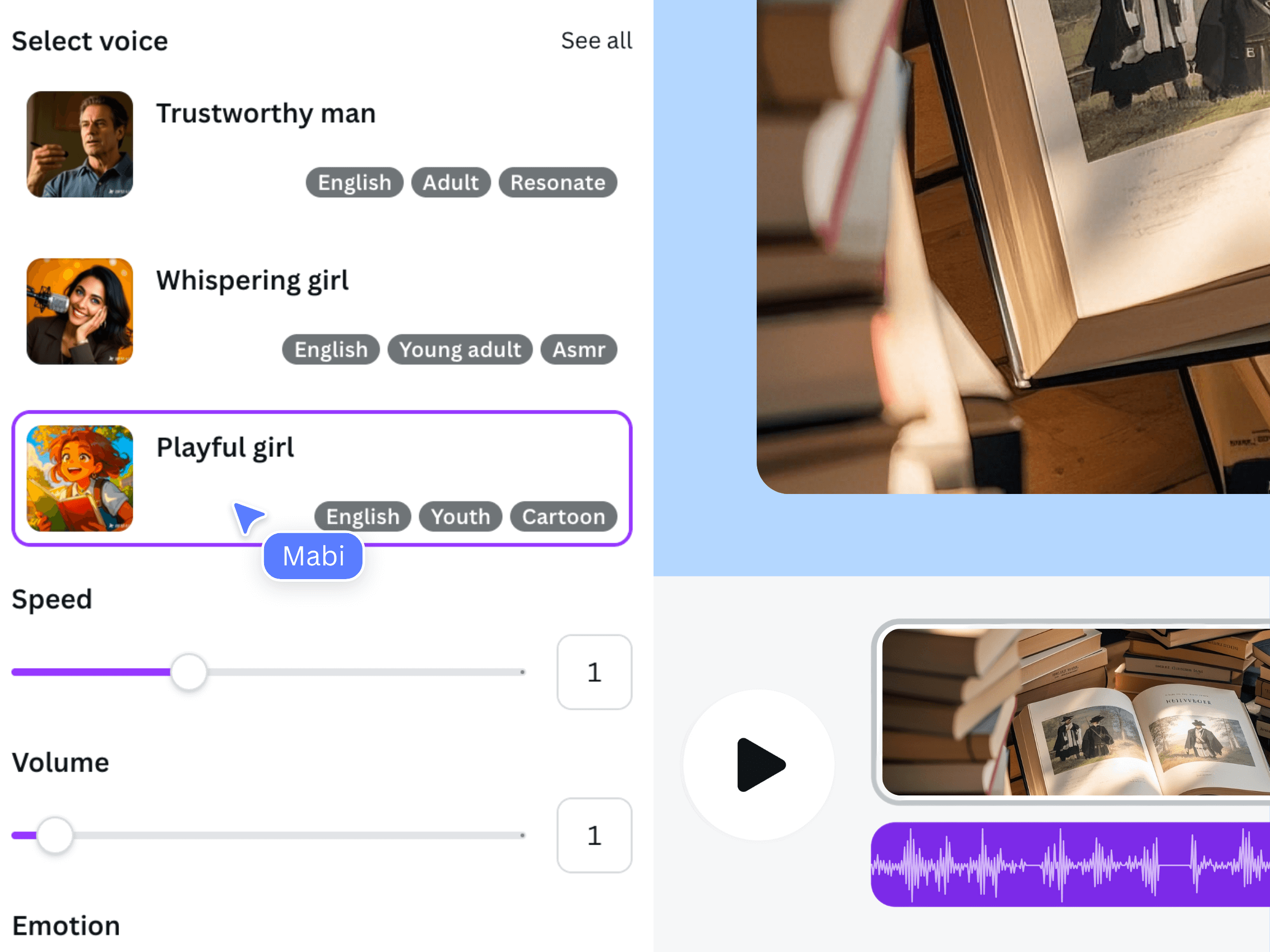
The official Voice AI illustration shows voice selection and delivery controls used to create narration. It is separate from the fictional reminder-tool storyboard above.
Remove friction before exporting
Watch the video as someone who has never used the product. Can you identify the problem, understand the demonstration, and tell what to do next? If the answer depends on a paragraph of tiny text, simplify the scene or split it into two clear moments.
Check that the final scene remains visible until the spoken action finishes. Keep any music below the narration and review transitions for accidental overlaps. Export an MP4 from Canva and inspect the result, including text legibility at the size your audience is likely to watch.
Frequently asked questions
How long should an explainer video be?
Use the time needed to explain one problem, demonstrate the relevant solution, and give a next action. A short video that omits a necessary step is less useful than a slightly longer one that makes the workflow clear.
Can I explain every feature in one video?
You can, but it often weakens the main message. Group features around the task the viewer wants to complete. Separate videos may work better when the tasks or audiences are different.
Should the narration repeat all the on-screen text?
Usually it should explain or connect the visuals instead. Repeat an important label when it helps the viewer locate something, but avoid reading dense screens word for word.
Does Voice AI make the visuals too?
This workflow uses Voice AI for narration. You create or arrange the visuals in Canva using suitable product screenshots, recordings, or clearly identified illustrations.