
An event invitation needs to make the next step unmistakable. Before choosing a voice, decide what the viewer must remember: who the event is for, when it happens, where it takes place, and how to respond. A polished narration cannot rescue a wrong time zone or a registration instruction that leads nowhere.
Use Voice AI to turn an approved invitation script into narration, then arrange that audio with your event visuals in Canva. The workflow below separates factual approval, spoken wording, and final delivery so a late schedule change does not leave contradictory information in the video.
- Lock the event details before writing the invitation
- Write for listening rather than reading a poster
- Build a short invitation from a clear example
- Generate narration and check the important words
- Arrange the invitation around the practical details
- Review changes and test the exported invitation
- Frequently asked questions
Lock the event details before writing the invitation
Create a small source sheet with one person responsible for confirming it. Use the event organizer's actual registration page or approved brief, rather than copying details from an older poster. Keep promotional opinions separate from practical information that must be correct.
- Audience: who should attend and any confirmed participation requirements.
- Date and start time: include the year when it could be ambiguous, and identify the time zone for an online audience.
- Location: distinguish a physical address from an online joining method.
- Response: the real registration route, deadline if applicable, and the next step after registering.
- Revision owner: who can approve changes to the invitation after narration has been generated.
Do not describe a fictional example as an actual event. If a detail is unresolved, omit it from the recording until it is confirmed. Regenerating a sentence later is possible, but it adds another place where an outdated date can survive.
Write for listening rather than reading a poster
A poster can display a date, address, organizer, and signup instructions together. A listener receives those facts one at a time. Give each practical detail a short sentence and let the screen carry information that would be awkward to read aloud, such as a long venue address or registration URL.
Write dates as you intend them to sound. For example, a draft containing 05/06 needs an agreed interpretation before recording. In an international invitation, speaking the month removes that ambiguity. Test the event name, presenter names, abbreviations, and the time-zone phrase in a short clip.
Keep the spoken action aligned with the actual destination. If the event page explains booking, say that. Do not promise an immediate confirmation, available places, or a joining link unless the organizer has confirmed that experience. The video should remain useful even when watched without sound, with essential details visible as text.
Build a short invitation from a clear example
The following is an original fictional planning example, not a real event announcement. Imagine an online sketching session whose approved brief says May 14, 2027, at 17:00 UTC, with registration handled on its event page. Its narration could read:
Sample narration: Join our online sketching session on May fourteenth at five p.m. UTC. We will work through a simple city scene together, with time to follow along. The event page explains what to bring and how to reserve your place. Open that page to check the details and register. We look forward to drawing with you.
Map the opening to the event title, the date sentence to a readable schedule card, the activity sentence to an authorized preview image, and the final action to a registration instruction. This is a script structure, not a measured duration. Read it aloud, generate a test, and adjust the visual timing to the actual narration.
Generate narration and check the important words
Open an audio-capable Canva design and launch Voice AI from the Canva Apps Marketplace. Enter the approved script, choose an appropriate voice, generate narration, and use the app's available controls when making a delivery comparison. The app creates spoken audio; it does not verify your event details or run the registration process.
Listen to the schedule sentence on its own first. Ask someone familiar with the event to check names and terminology. Then listen to the full invitation for clarity and emphasis. If the time-zone abbreviation sounds confusing, rewrite the phrase rather than assuming every viewer will understand it.
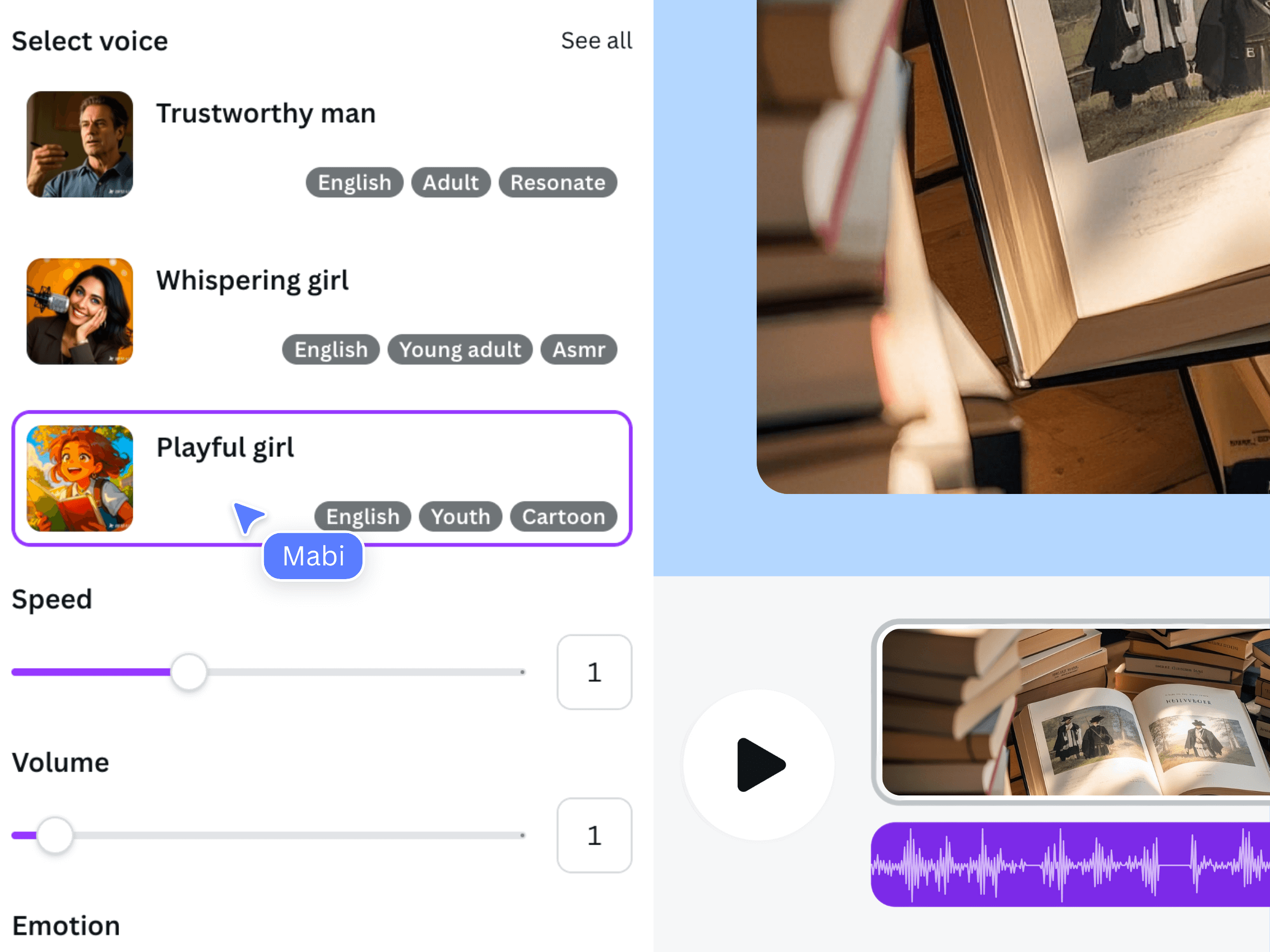
This earlier official product illustration introduces the general voice-generation workflow. It is not a screenshot of the fictional sketching event, and the current interface may differ.
Arrange the invitation around the practical details
Place the accepted narration in the Canva timeline. Align each schedule or location card with the corresponding spoken sentence. Canva provides audio timing and volume controls, but you still need to review whether the intended information is visible at the right moment.
Let the date card remain visible long enough to read. Avoid a fast transition during a presenter name or the registration instruction. If background music is present, reduce it until speech remains easy to understand on ordinary speakers. Leave a clear closing frame so the action does not disappear as the narration ends.
Review changes and test the exported invitation
Run a factual pass with the organizer and a viewing pass with someone who has not seen the brief. Ask the second reviewer to repeat the date, time zone, location, and response action. An uncertain answer points to information that needs clearer wording or more readable screen time.
If a detail changes, update the source sheet, narration, on-screen text, captions if used, and the event page as appropriate. Identify the current approved video so an older export is not accidentally distributed. Download the finished audio-containing video as MP4 and watch that file from beginning to end. Confirm that the final instruction is complete and the visible registration destination is the organizer's actual one.
Frequently asked questions
Should the narrator read the full registration URL?
Usually a short spoken instruction is easier to follow than a long address. Show the approved destination visibly and place the real link in the channel or message used to share the video. Do not add a placeholder link to make the example look complete.
Can Voice AI automatically adjust the invitation for each viewer's time zone?
Do not assume that. Treat the narration as a recorded statement with a specific approved time zone. If the audience needs local-time guidance, have the organizer provide a reliable conversion or registration experience separately and verify the wording before recording.
What should I regenerate after a schedule change?
Regenerate the affected passage and review the words before and after it. A new clip may have a different duration. Recheck the schedule card, transitions, captions, and final exported file rather than changing only the spoken date.
Is this workflow an automated event invitation service?
No. Voice AI supplies narration for a Canva design. Event planning, attendee communication, registration, and factual approval remain separate tasks. Use this workflow to present the organizer's confirmed information clearly.