
To create AI voiceover for employee training videos in Canva, start with an approved procedure, split the task into short teaching sections, and generate narration for each section with Voice AI. Pair the instructions with current workplace examples, then test whether an employee can complete the task without extra explanation.
The example below is a fictional receipt-submission workflow. Its script, module structure, and review questions illustrate a production method; they are not a statement about your company policy or a substitute for the person responsible for that procedure.
Define the task, employee role, and approved procedure
A training video needs a concrete outcome. Replace “understand expenses” with “submit one receipt with the required fields completed.” State who the video is for and what they need before starting, such as access to the relevant system and a sample receipt.
Ask the procedure owner to approve the steps before generating audio. Copying an old slide deck into a narration tool can preserve outdated instructions in a more convincing voice. Write down the procedure version and the date it was checked so a future editor can identify the source.
- Audience: an employee submitting a routine receipt for the first time.
- Prerequisite: access to the approved submission system and a sample document.
- Outcome: a draft submission with the required information checked.
- Boundary: exceptions and approval decisions go to the procedure owner.
Use demonstration records rather than employee details in the footage. Show only the fields needed for the task, and obtain approval for material entered into a third-party tool. For sensitive workflows, use neutral sample wording that still teaches the decision correctly.
Build short modules with a useful practice check
Divide the procedure into sections that can be replaced independently: preparation, data entry, review, and the next action. This is a maintenance decision as much as a teaching decision. A changed field should not require a new recording of the entire introduction.
Sample narration: “Open a new submission and attach the sample receipt. Enter the date and amount exactly as they appear on the document. Before continuing, compare those fields with the receipt again. If a required detail is missing, save your work and ask the procedure owner what to do next.”
- Preparation: identify the document and the information the task requires.
- Entry: demonstrate each relevant field without unnecessary navigation.
- Review: show the comparison between the entered values and the sample.
- Practice: ask the learner to inspect a second sample and identify a mismatch.
Give the learner a reason to pause. For example, ask which of two amounts matches the document before revealing the answer in a later scene. This is an editorial learning activity, not a claim that Canva or Voice AI scores responses, records completion, or integrates with your learning-management system.
Generate consistent narration for each module
In your Canva video design, open Voice AI from Apps and generate a short sample of the approved narration. Choose a voice that is easy to follow and use the available speaking-speed setting when needed. Add the approved audio to the design, then repeat for the remaining modules.
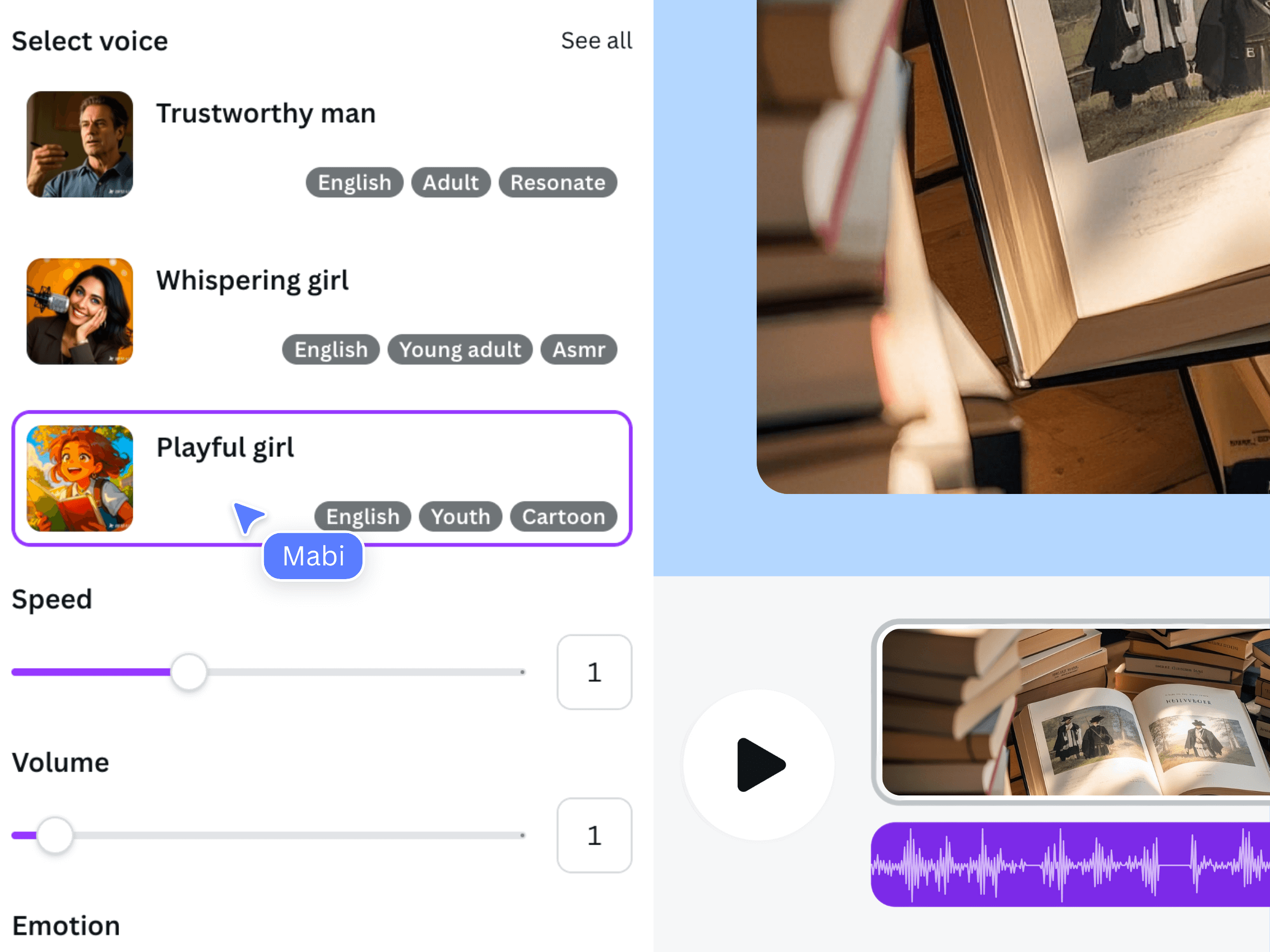
The official image illustrates an earlier Voice AI interface. It does not show the fictional receipt system or an employee training result. Your actual tutorial should use current, approved screenshots or recordings from the procedure being taught.
Keep the same delivery for the instructional sections. A sudden change in voice or energy can make a routine exception sound like a different procedure. For acronyms, dates, and internal tool names, check the generated audio with a person who understands the workplace terminology.
Keep a production log with module names, script revisions, and review status. Name them by the action they teach, such as receipt-review, rather than only by their order. The names stay meaningful if a future version adds a new section in the middle.
Give employees enough time to follow the evidence
Use the timeline to place each narration clip beside the corresponding screen action. Make field labels readable and leave a moment after a completed action so the learner can compare the result. Adjust the visuals to the actual generated clip instead of assuming every sentence has a fixed duration.
Remove background audio that competes with instructions. Music is optional; clarity is the requirement. Listen on ordinary laptop speakers and at a modest volume. If a number or instruction is hard to understand, rewrite or regenerate that sentence before making the whole track louder.
- Show the field before naming the information that belongs in it.
- Separate the routine path from exceptions, using clear spoken transitions.
- Leave a visible pause point before the learner must compare or decide.
- Keep important instructions understandable without relying on decorative animation.
Include a written reference employees can consult after watching. The video can teach the sequence, while the approved procedure remains the place to check changing details. Neither an authoritative voice nor a polished layout makes an unreviewed instruction correct.
Review, version, and maintain the training video
Ask someone unfamiliar with the draft to complete the sample task using only the video. Note where they stop, replay a scene, or ask a question. A successful review checks observable actions, not just whether the narrator sounds professional.
- Procedure owner: approves the instructions and exception route.
- Test learner: completes the sample task and reports confusing points.
- Editor: checks voice, screen evidence, and the exported file.
- Maintainer: records the review date and triggers updates when the procedure changes.
Save the script and modular Canva design with a version note. When a field or policy changes, update the affected module and repeat the practice test. Check any place the video is shared so employees do not keep following an obsolete copy.
Frequently asked questions
Can I turn an existing SOP into narration without rewriting it?
Use the approved SOP as the source, then rewrite it for spoken instructions. Long references, cross-links, and nested conditions often need a shorter explanation. Have the procedure owner approve the adapted script before using it for employee training.
How long should each narration module be?
Use the smallest section that teaches a complete action or decision. Test the generated clip with its visuals and the intended learner. There is no universal duration that makes a workplace procedure understandable.
Does this workflow track employee completion or quiz scores?
This guide creates a narrated video and an editorial practice activity. It does not establish learning-management integration, completion tracking, or automatic grading. Check the capabilities of your actual delivery system separately.
What should change when the workplace procedure changes?
Review the script, screen evidence, practice task, and shared video together. Replace the affected module, confirm that the procedure owner approves it, and clearly identify the current version so employees can distinguish it from an older copy.