
Build a customer support video around one observable problem and one successful outcome. Show the relevant screen, narrate the next action and explain what the customer should see afterward. Canva provides the video layout and timeline; Voice AI can turn your approved support script into narration.
A support guide differs from a product demo. Its job is to help someone finish a task or know when to contact support, rather than list features. The booking-confirmation example below is original sample material for a fictional service, not a real customer's account or a claim about a Voice AI integration.
Start with one symptom and a clear endpoint
Use a specific question from your help queue, then confirm the actual workflow with the person responsible for the product. 'I cannot find my booking confirmation' is a useful starting symptom. 'Learn everything about bookings' is too broad for a short troubleshooting video.
Define success in something a customer can observe: a confirmation is visible in their account, or the appropriate support request has been submitted. Do not make a video promise that an email will arrive instantly, a booking is paid or a reservation is guaranteed unless your actual service documentation supports that statement.
- Audience: a customer who has already attempted the booking.
- Starting state: no confirmation email is visible to them.
- End state: they understand the account status and their next action.
- Boundary: the guide does not handle payment disputes or account recovery.
Map the decision before writing the narration
Write the simplest useful branch on paper before recording screens. For the fictional example, the customer first checks the booking in their account. If its status is Confirmed, the next step is to check the recorded email address and the appropriate email folders. If the status is Pending or missing, the video directs them to the service's documented support route.
The actual status labels and escalation route must come from your product, not from this example. Avoid presenting one universal sequence when the customer may be looking at a different state. Put the decision early so that viewers do not follow irrelevant steps.
A good support script says what to do when the expected result does not appear. One concise alternative is more helpful than a long feature tour. Keep a more complicated or account-specific case in your help article or human support process.
Draft a screen-by-screen support script
Use two columns in your working notes: what is visible and what is spoken. Name the action and its result instead of saying 'click here' repeatedly. Viewers may pause the video, use a different window size or rely on the narration to understand the screen.
Original sample opening: 'If your confirmation email is missing, check the booking in your account first. This tells you which next step applies.' Visual: a demonstration account with the relevant booking area highlighted.
Original sample branch: 'If the status says Confirmed, check that the saved email address is the one you expected. Then check your email folders. If the booking is Pending or you cannot find it, use the support link shown in your account.' Visual: the two states shown separately, using the fictional service's approved wording.
Original sample ending: 'You should now know whether your booking is confirmed or whether support needs to review it. When contacting support, describe the status you saw.' Do not read private account details aloud. Replace these sample instructions with verified steps for your own service before producing the video.
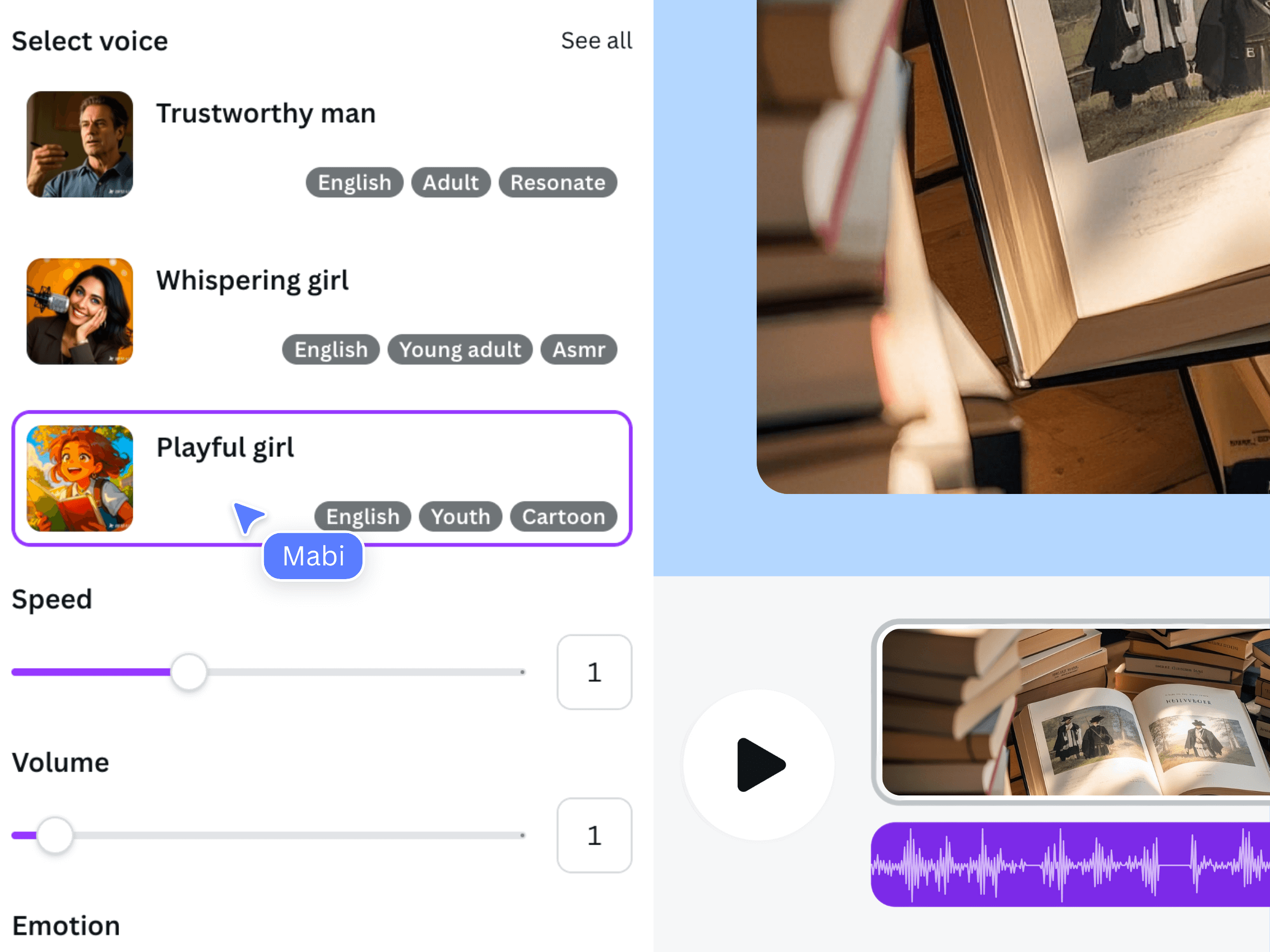
The artwork above is earlier official Voice AI promotional material, not a screen recording of the fictional booking service or a support dashboard.
Pair approved screenshots with reviewed Voice AI clips
Capture the product screens using demonstration data and the current interface. Remove unrelated notifications and information the viewer does not need. Keep the focus on the area named in the script, with enough surrounding context to identify where the action happens.
Open Voice AI in Canva and generate a short approved section of the narration. Review the pronunciation of product names and status labels before generating the remaining sections. The app describes adjustable speed and emotion; choose a delivery that stays clear when explaining a condition or an exception.
Place each reviewed clip beside its matching visual section in the Canva timeline. Let an important status or result remain visible long enough to inspect. If the narration outruns the action, shorten the wording or extend the visual sequence instead of compressing every instruction into one sentence.
Test the guide with someone who did not write it
Ask a reviewer to follow the video with the starting symptom and no extra explanation from you. Can they identify their branch, understand the next action and recognize the endpoint? Record where they pause, choose the wrong path or need you to explain a label.
Test the unsuccessful path as deliberately as the successful one. A customer who cannot find the expected state should reach a clear next step, not an endless loop of 'try again.' The video should state when the guide stops and where account-specific help begins.
Check captions or accompanying text against the accepted recording, especially product terms and conditions such as 'if' and 'unless.' Provide a written route for key actions in the place where you share the video, using links your support team has verified.
Keep the support video easy to maintain
Store the approved script, the interface version or review date, the responsible owner and the video location together. A change to a status label, account screen or support route should trigger a focused review. Keep the video short enough that a changed branch can be revised without rerecording unrelated explanations.
- The opening describes the exact symptom the guide addresses.
- Every spoken action matches the visible screen.
- Both the success and escalation paths have a clear endpoint.
- No real customer information appears in the sample recording.
- A fresh final export has been watched and heard from start to finish.
Do not measure usefulness by how many features appear. A narrow video that resolves one question accurately is easier to understand and update than a polished presentation that leaves the customer unsure what to do.
Frequently asked questions
How long should a customer support video be?
Use the time needed to explain one problem, its important branch and the endpoint. Remove unrelated features. Test comprehension with a new reviewer instead of choosing a universal duration.
Can Voice AI inspect customer accounts or answer tickets?
This workflow uses Voice AI for text-to-voice narration. It does not assume account access, a ticket integration or an automatic support decision. Your team must verify the underlying instructions.
Should I show a real customer's screen?
Use demonstration data that illustrates the same state whenever possible. Show only information needed for the instruction, and follow your organization's approval process for any real material.
What should happen when the customer cannot reproduce the expected result?
Give a documented alternative or escalation route. State the boundary of the video, and tell the customer which observable status or symptom to describe when asking for help.