
To add captions to an AI voiceover video in Canva, finish the narration first, use Canva's Editable Captions workflow for the relevant spoken media, correct the recognized text, and inspect an exported MP4. Generating the voice and generating the captions are separate steps. Voice AI supplies narration; the caption tools described here belong to Canva.
The distinction matters because Canva also has view-only accessibility captions. Those help people viewing content in Canva, but they are not the same as captions included in a downloaded video. Decide where the video will be watched before choosing the caption workflow.
Choose captions for the delivery format
If the video is going to a social feed, a learning platform, or another place outside Canva, plan to review captions that are part of the downloaded MP4. If viewers will watch a Canva link, a view-only setting may serve a different need. Do not test one and assume you have verified the other.
Create a short acceptance note for the project: the words must be correct, the captions must be readable over the visuals, and the exported video must show the intended captions. That is a more useful definition of finished than merely seeing text appear once in the editor.
- Narration is the spoken audio that Voice AI helps you create.
- Editable Captions are Canva timeline content you can review and include in a video export.
- View-only accessibility captions support viewing in Canva and should not be treated as downloaded caption artwork.
Approve the narration and isolate the spoken track
Correct the voiceover before captioning it. Changing the script or regenerating a sentence after text has been timed creates another review task. Keep the approved narration text next to the project, but remember that captions should match what is actually spoken rather than a superseded draft.
For a simple example, imagine the audio says: Open the project folder. Choose the blue template. Save a copy before you edit. The caption review should preserve those three actions and their order. Adding a new instruction only in the captions makes the video inconsistent for people listening and people reading.
If there is music, listen for whether speech remains distinct. Where your caption controls offer a media selection, choose the intended spoken track rather than unrelated audio. Wait for media processing to finish. If recognition cannot find speech, check the selected media and design type before repeatedly generating more text.
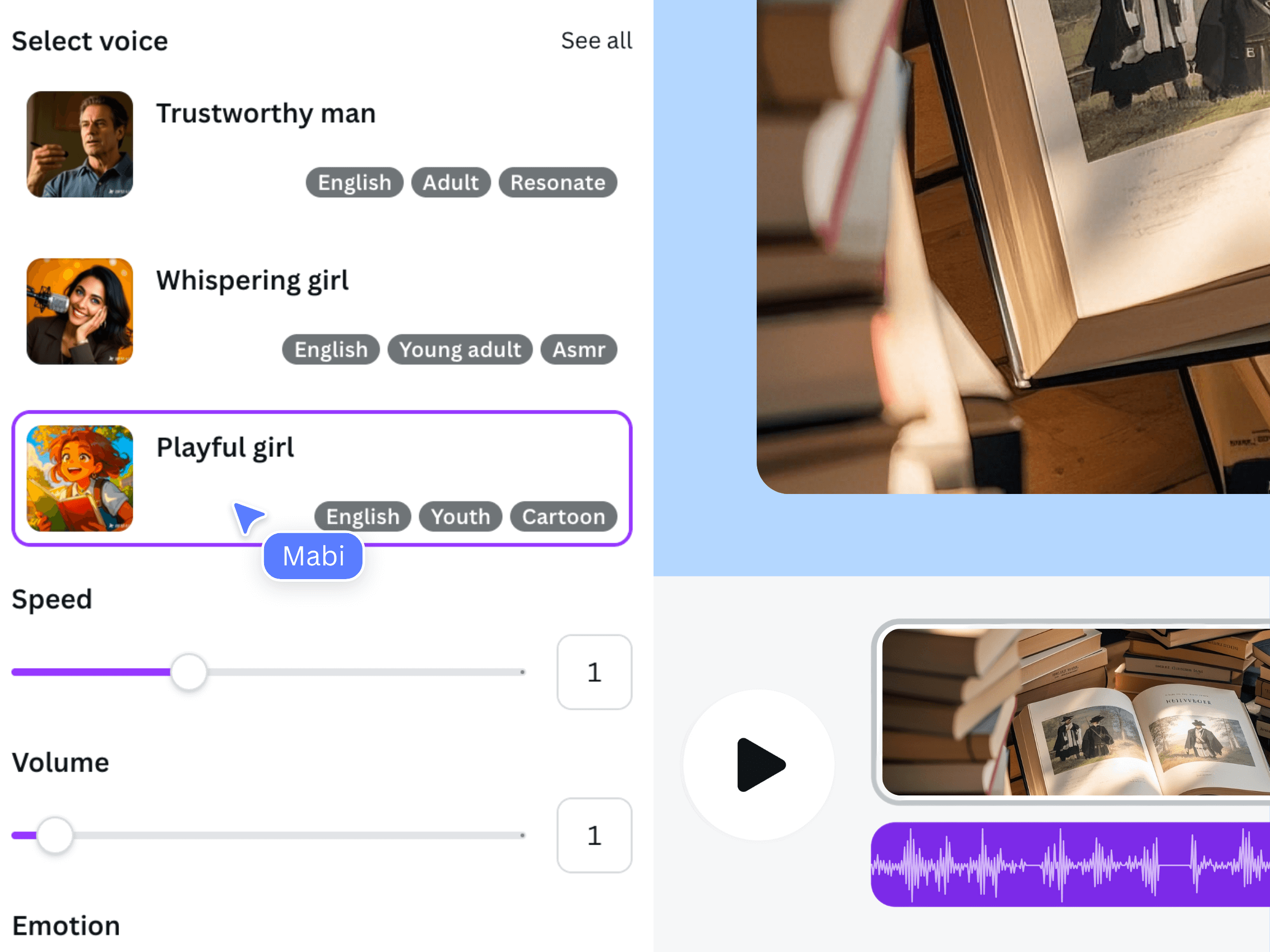
This is an official Voice AI promotional illustration of the narration stage from an earlier interface. It does not show Canva's captions controls and should not be used as evidence that the voice app creates subtitles itself.
Generate editable captions in Canva
Use a video design or another supported design with spoken media. Find Canva's Captions tool in the editor; its location may differ between interfaces. Follow the available controls to select the relevant media, confirm the spoken language when necessary, and generate the caption layer. If your interface differs, use Canva's current help instructions rather than hunting for a specific screenshot.
Treat recognition as a first draft. Brand names, abbreviations, numbers, and specialist vocabulary deserve particular attention. Do not change the pronunciation in the audio merely to disguise a caption error: decide whether the audio itself needs correction, the recognized text needs correction, or both need another pass.
An original review example: if the narration says Save a copy, but recognition produces Save the coffee, correct the caption to the spoken instruction. If the narrator actually misread your product name, repair that narration first and then review the resulting captions. A polished font cannot make an incorrect instruction reliable.
The earlier official demonstration below concerns the general Voice AI narration workflow. It does not demonstrate caption generation. Use it only to understand the preceding audio stage, then perform caption editing in Canva separately.
Review wording, timing, and visual placement separately
Make three passes instead of trying to evaluate everything at once. First read for accuracy against the audio. Next watch sentence starts and ends: a caption should not disappear before its spoken phrase is understandable. Finally inspect placement and contrast against the actual footage, including moments when the background changes.
- Accuracy pass: check every name, number, negative instruction, and final call to action.
- Timing pass: inspect the first phrase, edits between clips, and the last phrase before the video ends.
- Layout pass: keep important words away from busy visuals and any destination interface controls you expect to cover the frame.
Shorten awkward line breaks without silently deleting information. If a sentence needs too much reading time, consider revising the narration and visuals together. Keep caption styling consistent enough that viewers can focus on meaning. An animation is optional; a clear, stable phrase is often the better choice for detailed instructions.
Verify the download after the final edit
Export the intended pages as an MP4 video and open the file outside Canva. Confirm that the captions are visible with the player sound muted, then listen to the same file with sound. This checks both delivery modes rather than relying on a temporary editor setting.
After any substantial narration replacement, repeat the timing pass. A sentence that looks almost identical in the script can have a different spoken duration. Keep a record of the approved audio revision and caption revision together so another editor knows which assets belong in the final video.
If captions are absent from the download, first confirm that you used Editable Captions and selected a video format. Then compare the selected export pages with the pages you reviewed. If recognition fails, use clear supported media and inspect Canva's current troubleshooting guidance. Do not claim the finished video is accessible solely because an automatic transcript exists; a human review is still valuable.
Frequently asked questions
Does Voice AI generate the captions in this tutorial?
No. Voice AI is used for the narration. Canva's caption tools recognize and display the words as a separate editing step. Keeping the two stages distinct makes it easier to identify whether a problem is in the script, generated speech, or caption text.
Why do captions appear in Canva but not in my downloaded file?
Check whether you enabled view-only accessibility captions instead of creating Editable Captions. Also confirm that the download is an MP4 video and includes the pages you checked. A viewer setting and a caption layer are different things to verify.
Should I regenerate captions after replacing one sentence?
Review the affected phrase and adjacent timings whenever the audio changes. Depending on the change and your available controls, editing the existing captions or generating a new caption pass may be more appropriate. Always compare the final exported video with the accepted audio.
Can I trust captions when the generated voice sounds clear?
Clear speech helps, but recognition can still mishandle names, acronyms, and unfamiliar terms. Read the captions against the spoken version. A synthetic narrator is not a guarantee of an error-free transcript, and visual styling does not replace proofreading.