

For a Canva presentation, a useful AI voice must explain the slide at a pace the audience can follow. Voice AI is a practical starting point for scripted narration with delivery controls. Text-to-Speech is worth checking when the source material lives in documents; other options include Murf AI, AI Voice by DupDub and Voiceover.
This guide is published by the Voice AI team. We checked the five apps’ Canva listings on 4 November 2026 and compare their stated workflows. We did not conduct an independent listening benchmark or verify a common pricing plan.
Match the app to the presentation you are making
A narrated deck is not simply a document read aloud. The voice should explain the relationship between the objects on screen, while leaving enough time to inspect a chart or understand a new term. Decide whether your audience will watch a self-running video or hear a live presenter before choosing the narration workflow.
- For a script already organized by slide, evaluate Voice AI's voice and delivery controls.
- For source material in PDF, Word or PowerPoint, investigate Text-to-Speech's document inputs.
- For a range of emotional styles and tonalities, inspect Murf AI's listed voice options.
- For text narration intended for presentations and multimedia, consider AI Voice by DupDub.
- For branded narration across a deck, inspect Voiceover's available voice options.
The app choice does not settle slide timing. Judge the actual generated clip against the amount of information the viewer must absorb, then adjust the script or scene duration.
Canva-displayed users for selected presentation apps
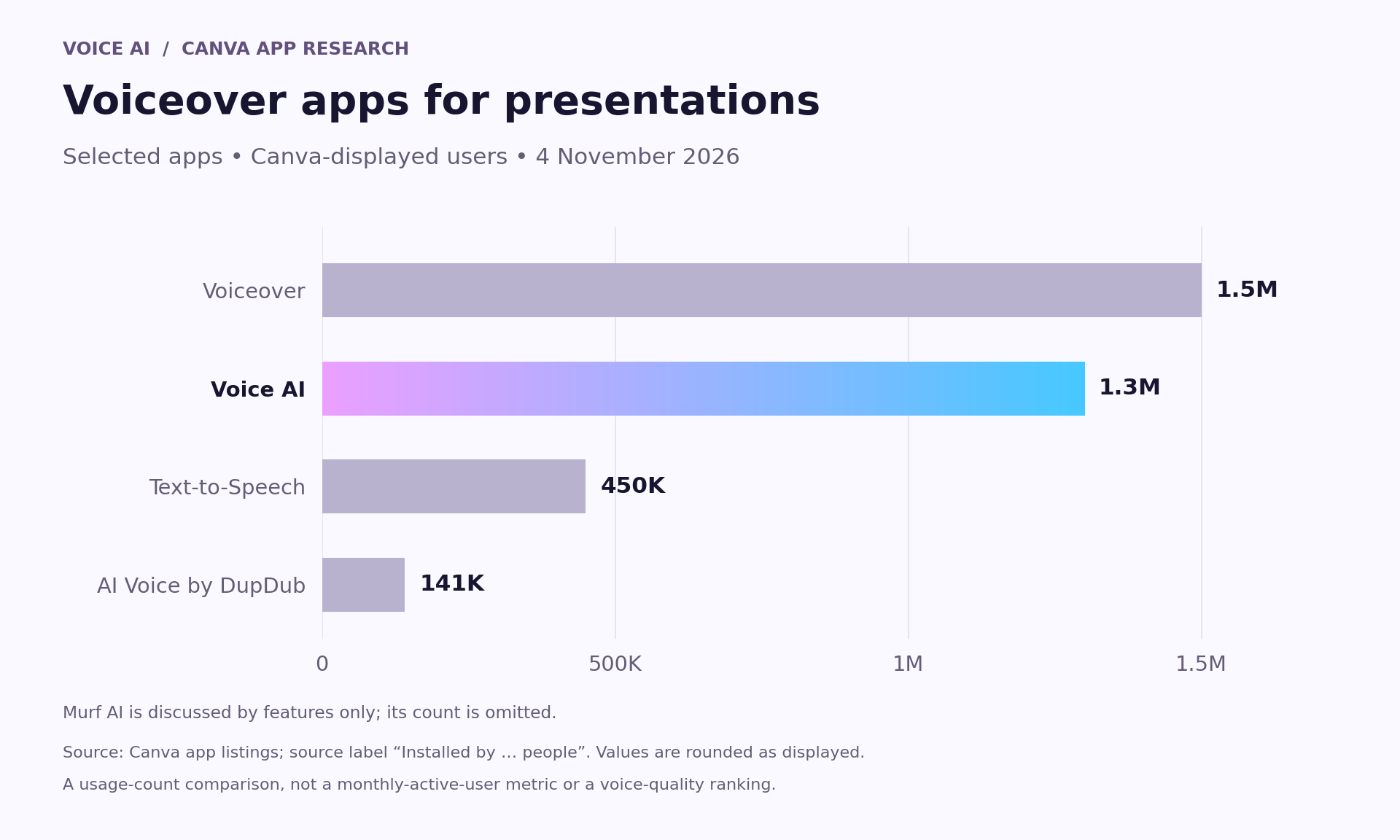
- Voiceover: 1.5M users.
- Voice AI: 1.3M users.
- Text-to-Speech: 450K users.
- AI Voice by DupDub: 141K users.
These rounded counts were displayed by Canva on 4 November 2026 under its “Installed by … people” measure. They are usage counts, not monthly-active users or a quality ranking. Murf AI is included in the feature discussion only; its count is intentionally omitted.
Voiceover's displayed count in this selection is higher than Voice AI's. That is useful adoption context, but it does not establish which voice will best pronounce your terminology or explain your slides. Test the content that matters for your presentation.
Five apps and the situations worth testing
Voice AI: narration with deliberate pacing
Voice AI, by imagination-soft, advertises more than 1,800 voices with adjustable speed and emotion. For a narrated deck, the useful question is whether the selected voice can sound clear and consistent across an introduction, an explanation and a conclusion.
Start with the most difficult slide, not the title slide. Include an acronym or technical name if the actual presentation uses one. Review the available controls for that voice, then choose a delivery that leaves room for the audience to look at the visual.

Official Voice AI product illustration. It shows an earlier interface; current labels and available controls may differ.
Text-to-Speech: start from document material
Text-to-Speech, by Transmonkey, describes reading text, documents and images, with PDF, Word, Excel and PowerPoint among the supported formats. This makes it relevant when your raw material is still in a document rather than a finished narration script.
Document input is not proof that the tool will write a concise slide story or align it with a Canva timeline. Review headings, footnotes and dense tables carefully. Rewrite the spoken explanation when reading the source verbatim would overload the audience.
Murf AI: inspect voices and tonalities
Murf AI's Canva listing describes script-based narration using voices across languages, emotions and tonalities. It is an option to inspect when the required presentation style is specific—for example, a restrained product explanation versus an energetic introduction.
Use the same sample paragraph you test elsewhere. Verify the current in-app choices and terms; this listing-based guide does not make claims about a free allowance, superior sound, or presentation synchronization.
AI Voice by DupDub: presentation and multimedia narration
AI Voice by DupDub, by Mobvoi PTE. LTD., describes text-based voiceovers for videos, presentations and multimedia. That positions it as another candidate for a deck intended to become a narrated video.
Evaluate how it handles your real slide language and how the generated audio fits the Canva design. The listing's presentation use case is not evidence of an automatic full-deck narration feature.
Voiceover: maintain a consistent brand voice
Voiceover, by Autopilot, describes multiple voice options for branded narration. Consider it when a consistent tone across a series of sales, onboarding or company presentations matters more than changing character voices on every slide.
Try the same voice on both a short headline explanation and a longer paragraph. Check pronunciation and continuity, then decide whether the delivery suits the brand rather than simply choosing the most dramatic sample.
A three-slide audition that reveals practical problems
Create a tiny test deck before narrating a long presentation. Use three different jobs: introduce an idea, explain evidence and ask for an action. This is a proposed evaluation exercise; the lines below are original scripts, not claims that audio has been produced.
Slide 1: state the point
“Our project has one goal: make the weekly handoff easier to follow. Today, we will look at the current process and choose the next improvement.”
Listen for a confident opening without unnecessary urgency. Leave a brief visual pause before moving to the process slide.
Slide 2: explain a diagram
“Start with the request on the left. It moves to review, then to the delivery queue. The extra handoff happens between those last two stages.”
Check whether the audience can follow each location while it is named. If the sentence is too fast, simplify it or allow a longer scene; do not assume speeding up every clip will improve the deck.
Slide 3: finish with one action
“Before Friday, choose one handoff to simplify. Add your suggestion to the shared plan, together with the person who will try it.”
Check that the final instruction stays clear. Avoid cutting the last word at a slide transition or ending the video before the viewer has time to act.
Build and review the narrated version in Canva
Use Voice AI in the Canva design to create narration one slide or idea at a time. Keep voice and delivery choices consistent, add the generated audio, and review the sequence with the visuals. The official demonstration below shows an earlier interface, so labels may differ from the current app.
For a self-running presentation video, check the full playback and the downloaded video rather than assuming the editing preview catches every timing issue. For a live presentation, decide where narration helps and where it would compete with the human speaker. Do not assume an exported slide-deck format preserves every audio behavior of a video.
Frequently asked questions
Which AI voice is best for a business presentation?
Start with a clear voice that pronounces your terms correctly and keeps a consistent pace. Test an explanatory slide and a closing instruction before choosing. A directory count or a dramatic demo alone cannot decide this.
Should I narrate every word on the slide?
Usually the spoken explanation should add context. A slide full of text plus an identical narration can be difficult to follow. Keep the essential visual labels and write the voiceover for listening.
Can I turn a PowerPoint into finished Canva narration automatically?
Text-to-Speech lists PowerPoint among its inputs, but that does not verify a complete automatic Canva narration-and-timing workflow. Check the input behavior and edit the spoken script before building the final sequence.
Do the usage counts show active listeners?
No. They are the rounded counts shown in Canva's app directory, whose source label refers to people who installed an app. They do not show how many people listened to a particular voice or used the app recently.
Should I generate the entire deck as one clip?
Short segments make targeted corrections and timing adjustments easier. A single long clip may suit some projects, but changing one line can be more cumbersome. Choose the structure based on how often the deck will be revised.